 thiran
Why a general PDF editor falls short on drawings
Most PDF editors are made for letters and forms. A drawing is different: it's large, it's to scale, it changes revision by revision, and someone has to price what's on it. Thiran is made for that work.
What you can do
Mark up drawings
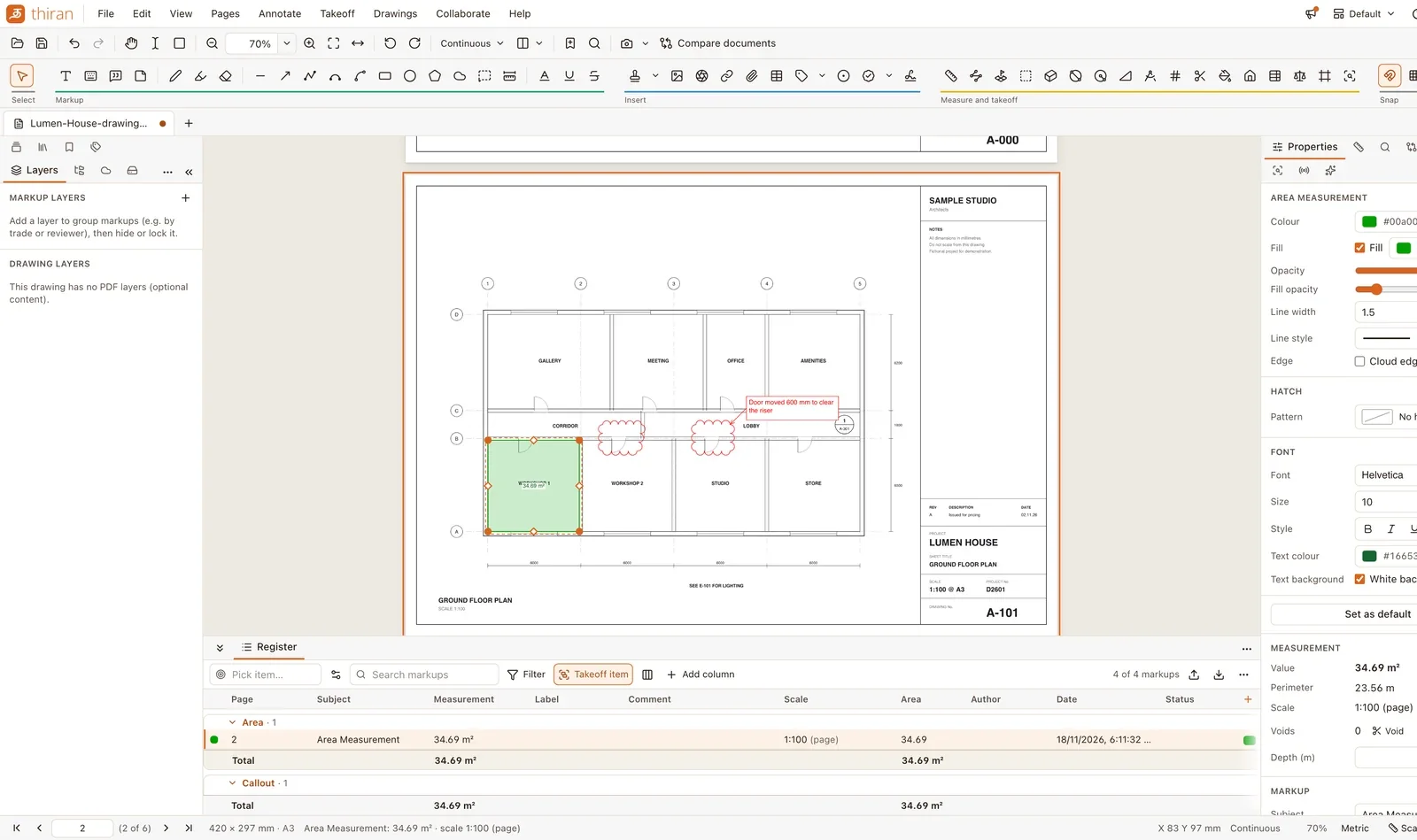
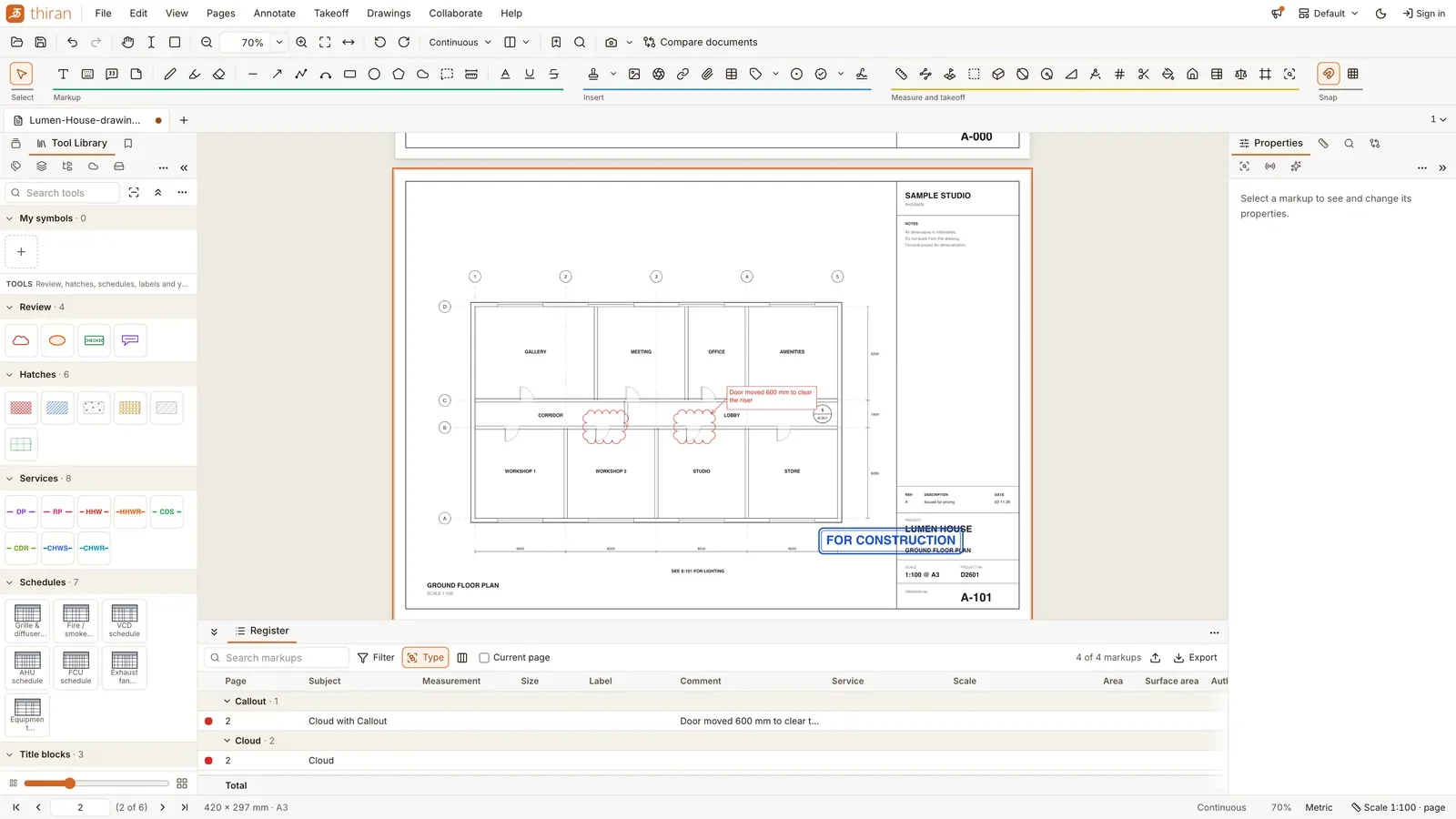
Revision clouds, clouds with a note attached, callouts, text, stamps, pens, highlighters, lines, shapes and symbols. Put each trade's or reviewer's markups on their own layer and hide or lock them with one click. Highlight, underline or strike out the words in a specification.
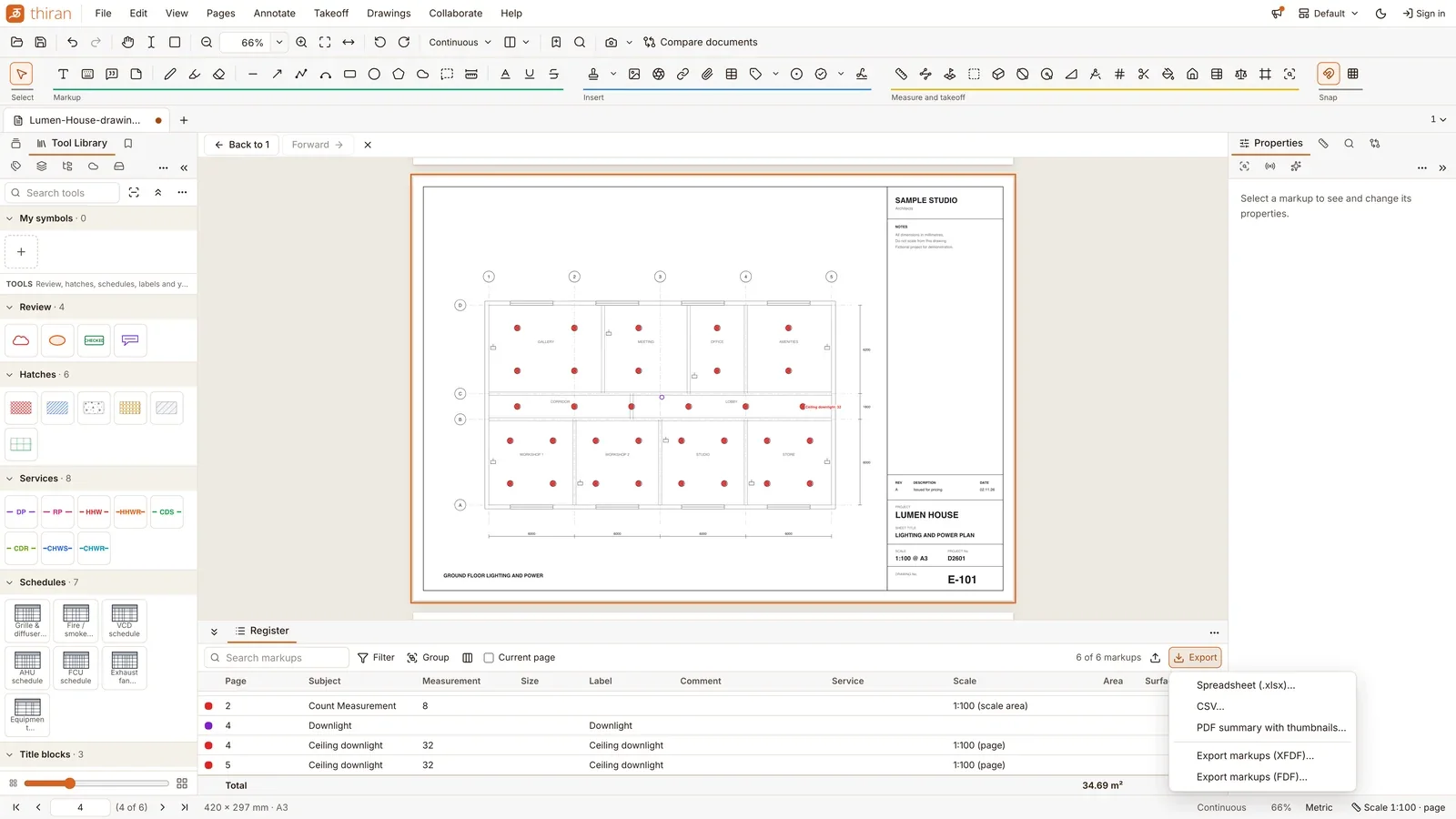
Every markup is listed in the Register at the bottom of the screen, with its page, author, date and status. Click a row to jump straight to it.
Markups that stay in the PDF
When you save, the markups are written into the PDF as standard markups. The people you send it to see them in their usual PDF reader, with no special software. Need to issue a copy that can't be changed? Flatten the markups into the drawing first.
Measure to scale
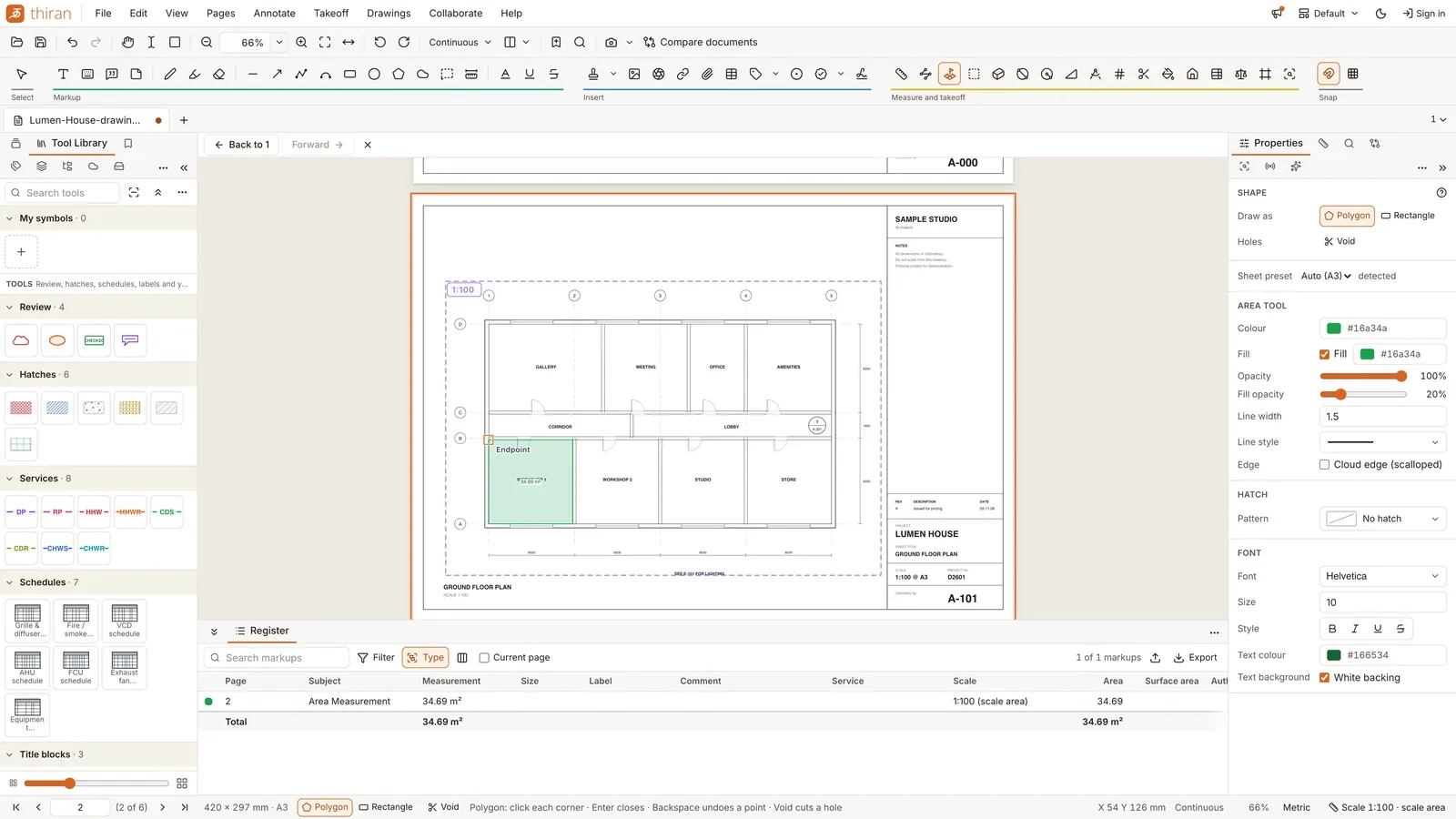
Set the scale (such as 1:100) or calibrate from a known distance, then measure lengths, runs, areas, perimeters and volumes. Take out voids, give an area a depth to get its volume, and work in mm, m, m² and m³ or in feet and inches.
Compare and overlay revisions
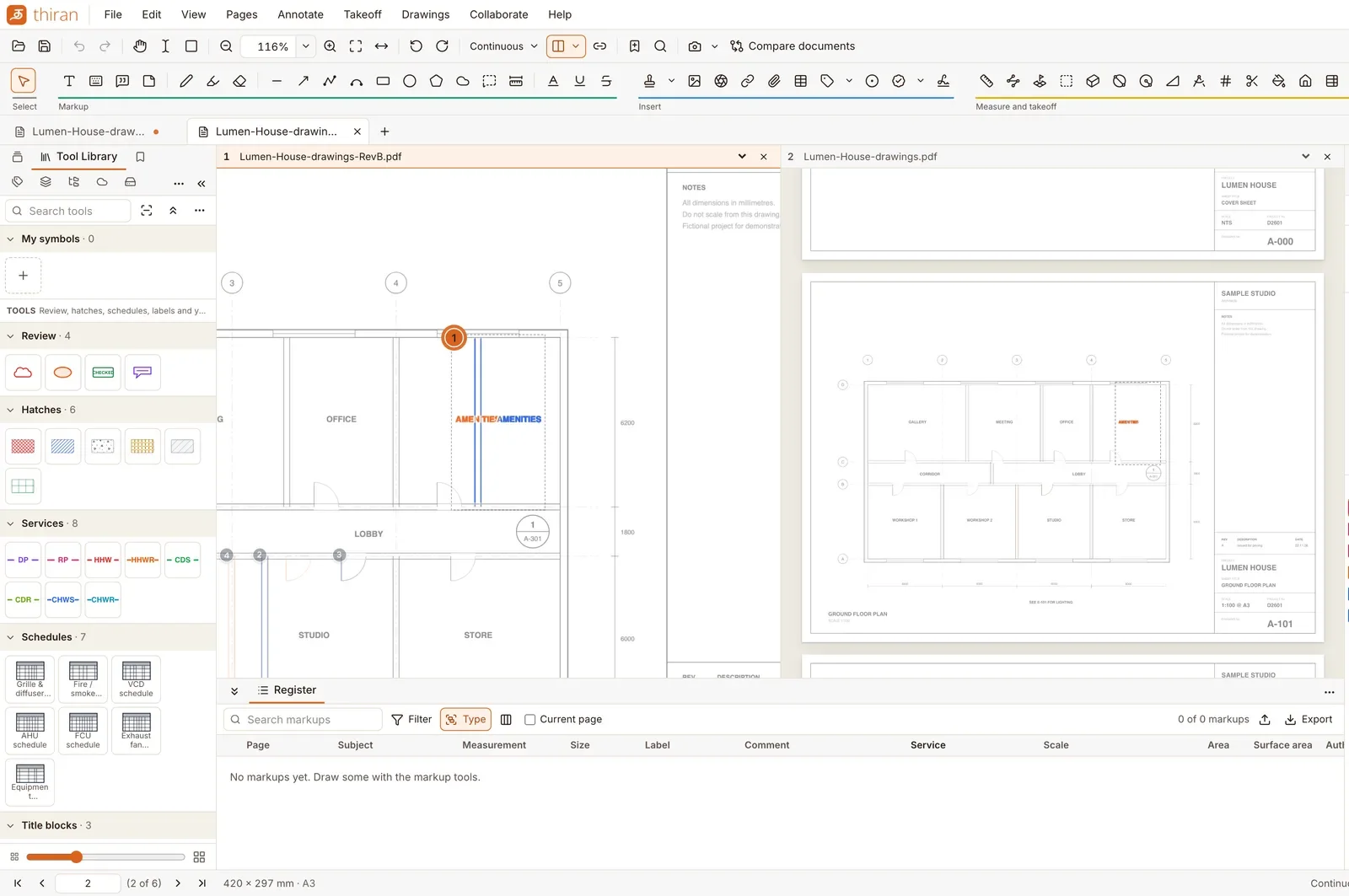
Compare two revisions and the changed linework is traced on the newer one: added in blue, removed in orange. Step through each change, keep or dismiss it, and cloud the ones that matter. Or overlay two or more drawings, each in its own colour, to see what moved or how trades fit together.
Takeoff counts and quantities to Excel
Count items with a click each, or box one symbol and find every copy. Totals by name are in Quantities and the Register, where you can add your own columns, rates and formulas. Export to Excel (.xlsx) or CSV, or keep a spreadsheet up to date as you work.
The everyday PDF jobs too
Combine and split files, rotate and crop pages, fill in forms, recognise text on scans (OCR), redact, sign with a digital ID, print, and reduce file size for email. You can also change a line of the PDF's own text, such as a title block value.
Windows, Mac and the web, together
Thiran is the same app on Windows, on Mac and in any modern browser, so a team on mixed computers works the same way. Open drawings from your computer, Google Drive or OneDrive, and save them back.
Your files open on your own device and stay there unless you put them in a cloud project. Once your device is activated, Thiran works offline for 30 days.
What Thiran is not
Thiran is a PDF editor for marking up, measuring and checking drawings. It isn't a word processor or a page-layout tool: it won't reflow paragraphs or rewrite a document. It also doesn't change the CAD file the drawing came from, though you can send your markups back to CAD as a DXF.
Pricing
US$19.90 a month or US$199 a year per licence, every tool included. Annual saves 17%, and bigger teams get a discount.
Each licence covers one person on two devices, such as a desktop at the office and a browser at home. Only one of the two is in use at a time.
Try it free for 7 days, no card needed.
Common questions
Can I edit a PDF drawing with Thiran?
You can mark it up, measure it, compare it and take quantities off it, and change a line of existing text such as a title block value. It isn't built for rewriting the text of a document.
Will my markups open in other PDF readers?
Yes. They're saved inside the PDF as standard markups, so other PDF readers show them.
Does Thiran work on a Mac?
Yes. It runs on Mac, on Windows and in any modern browser. It's the same app everywhere.
Can I work offline on site?
Yes. Once your device is activated, Thiran works offline for 30 days.
How many devices can I use?
Each licence covers one person on two devices. Only one is in use at a time, and you can move it with one click.
Does it work with metric drawings?
Yes. Set metric scales such as 1:50 or 1:100 and measure in mm, m, m² and m³.
Step-by-step guides
- How to annotate and redline a PDF drawing
- How to set the scale on a PDF drawing
- How to measure areas and lengths on a PDF drawing
- How to compare two drawing revisions
- How to count symbols and export quantities to Excel
- How to annotate a PDF on a Mac
- How to do a construction takeoff from PDF drawings
- How to stamp and sign a PDF drawing
- How to open and edit a PDF from Google Drive
- Construction drawing review checklist
- How to rotate a PDF drawing and save it
Open a drawing and see for yourself
Mark up, measure, compare and take off on Windows, Mac and the web.