 thiran
What you need
- A PDF drawing. One sheet or a whole combined set both work.
- Thiran on Mac, Windows or the web. The 7-day free trial has every tool.
1Open the drawing
Drag the PDF onto Thiran, or choose it from your computer. You can also open it straight from Google Drive or OneDrive and save it back there when you're done.
2Cloud the change
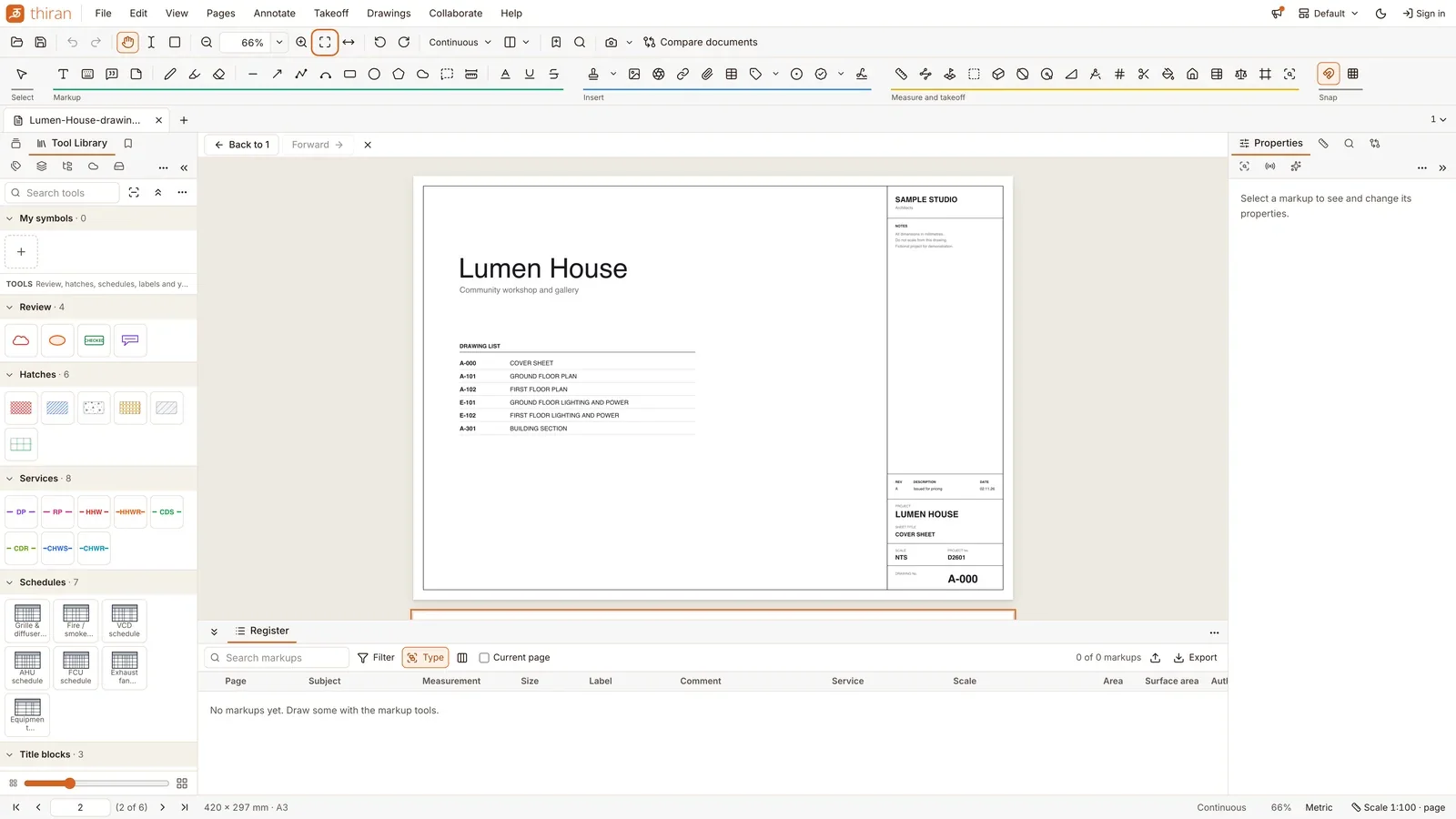
- Choose Cloud on the toolbar.
- Click round the area that changed. Double-click, press Enter or click the first point to close the cloud. To draw a box-shaped cloud instead, switch Shape to Rectangle and drag.
- In Properties, set the arc size (S, M, L or XL), the colour and the line width.
The Cloud tool stays on after each cloud, so you can cloud change after change. Press Esc to go back to Select.
3Say what changed
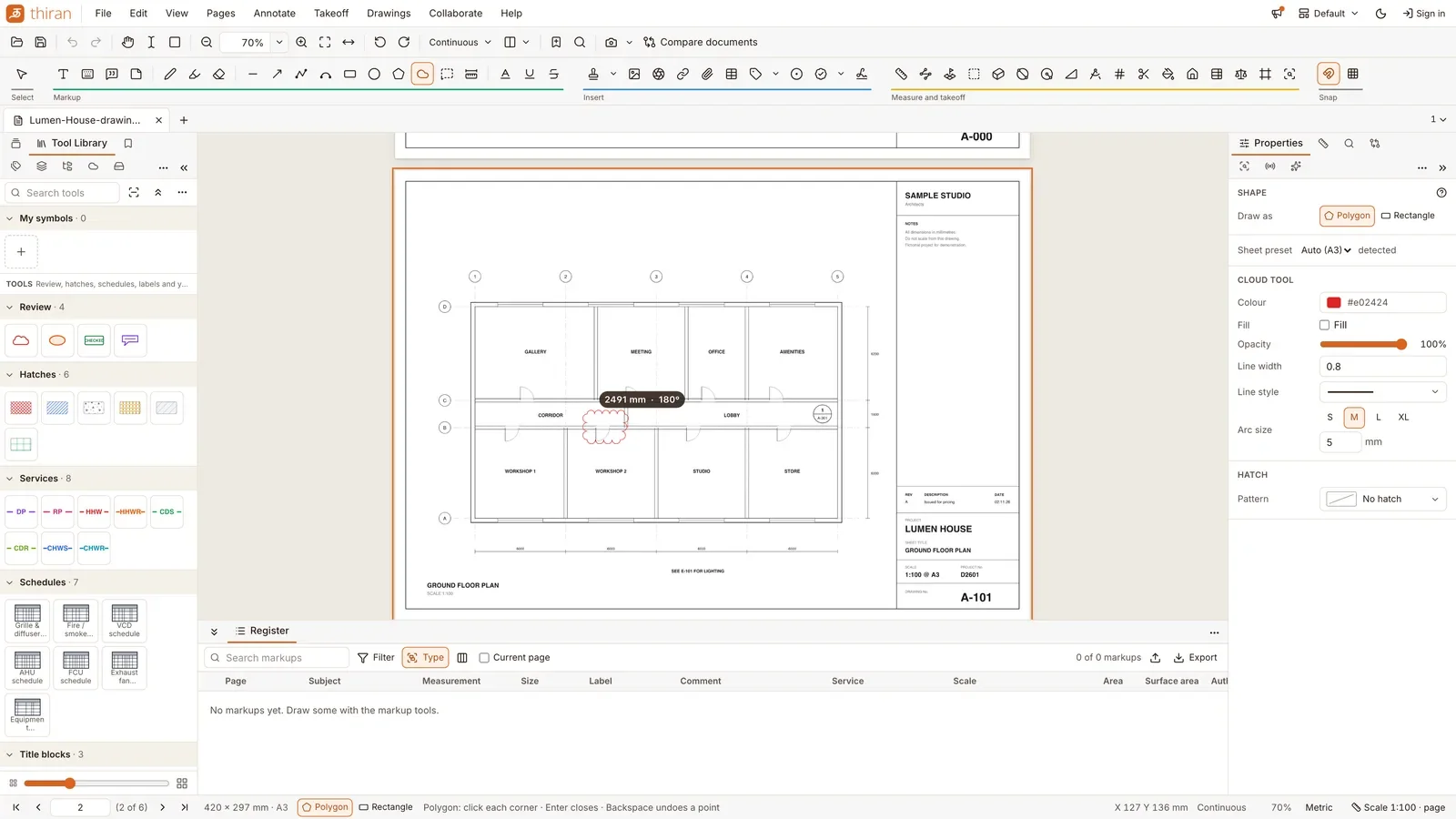
A cloud on its own doesn't explain anything. Add the reason in one of two ways:
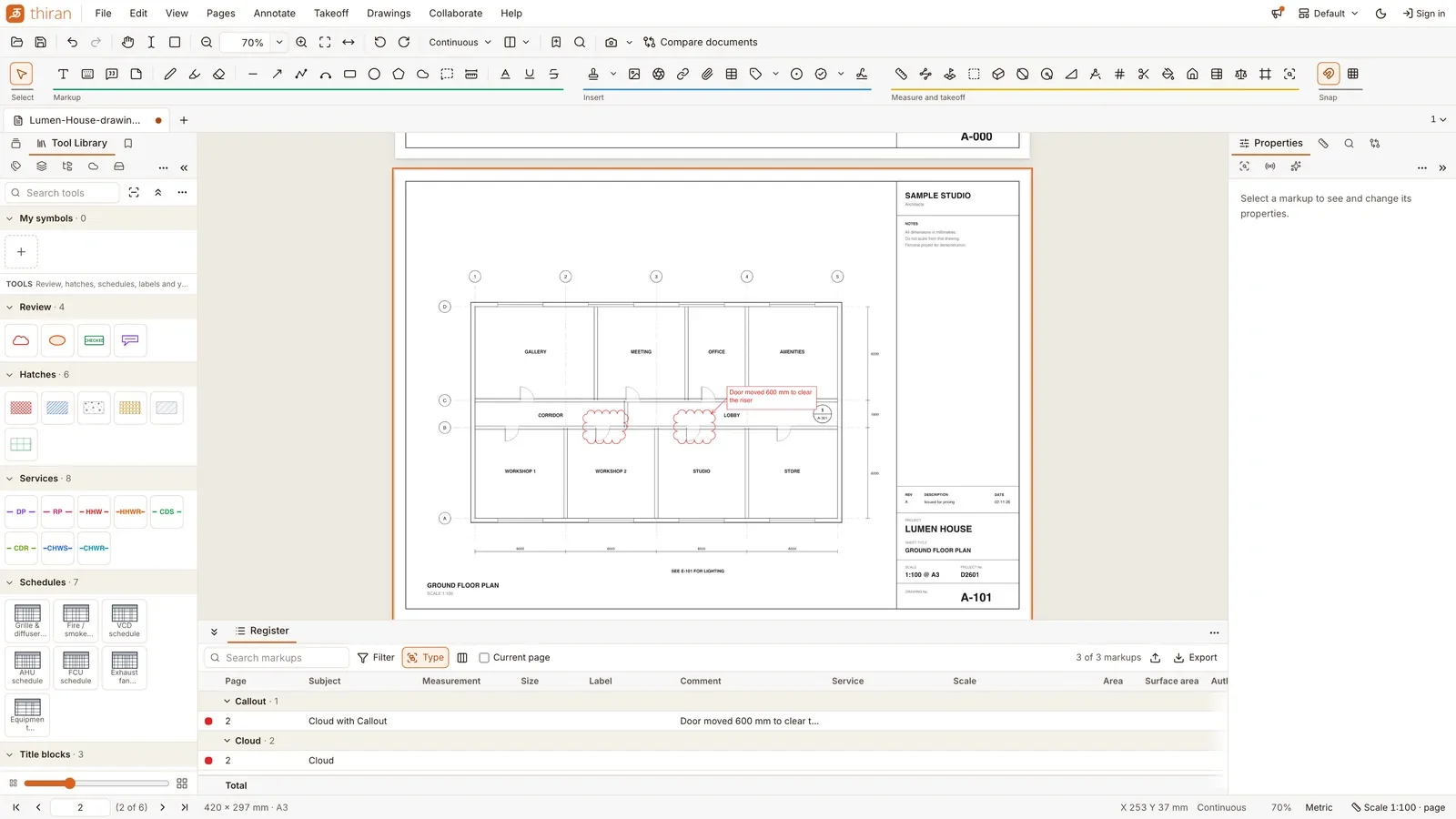
- Cloud with Callout draws the cloud and attaches a note in one go. Type the note, then drag its box to where it reads best. The cloud and its note move together.
- Callout is a note with an arrow. Click the point the arrow should touch, click where the text box goes, then type.
Click the cloud, the leader line or the text box, and Properties shows a section for each one. That means you can give the cloud, the line and the box their own colour and line.
4Add notes and stamps
- Text box: drag a box, or just click for a standard-size box, and type. Press Esc or click away to finish.
- Sticky note: a small note icon. Point at it to read it, or open it to see the whole note.
- Pen and Highlighter: freehand, as with a pen on paper.
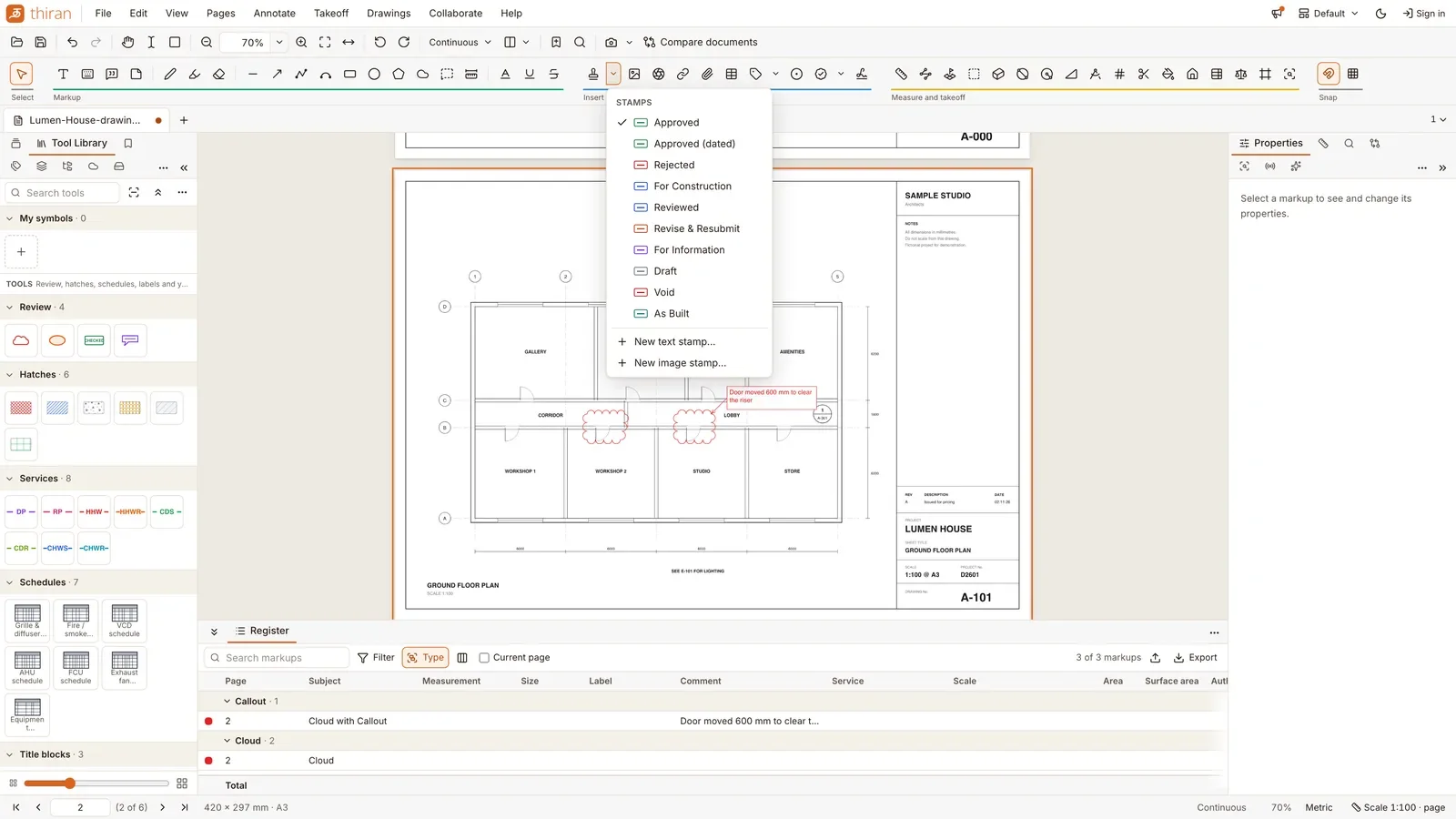
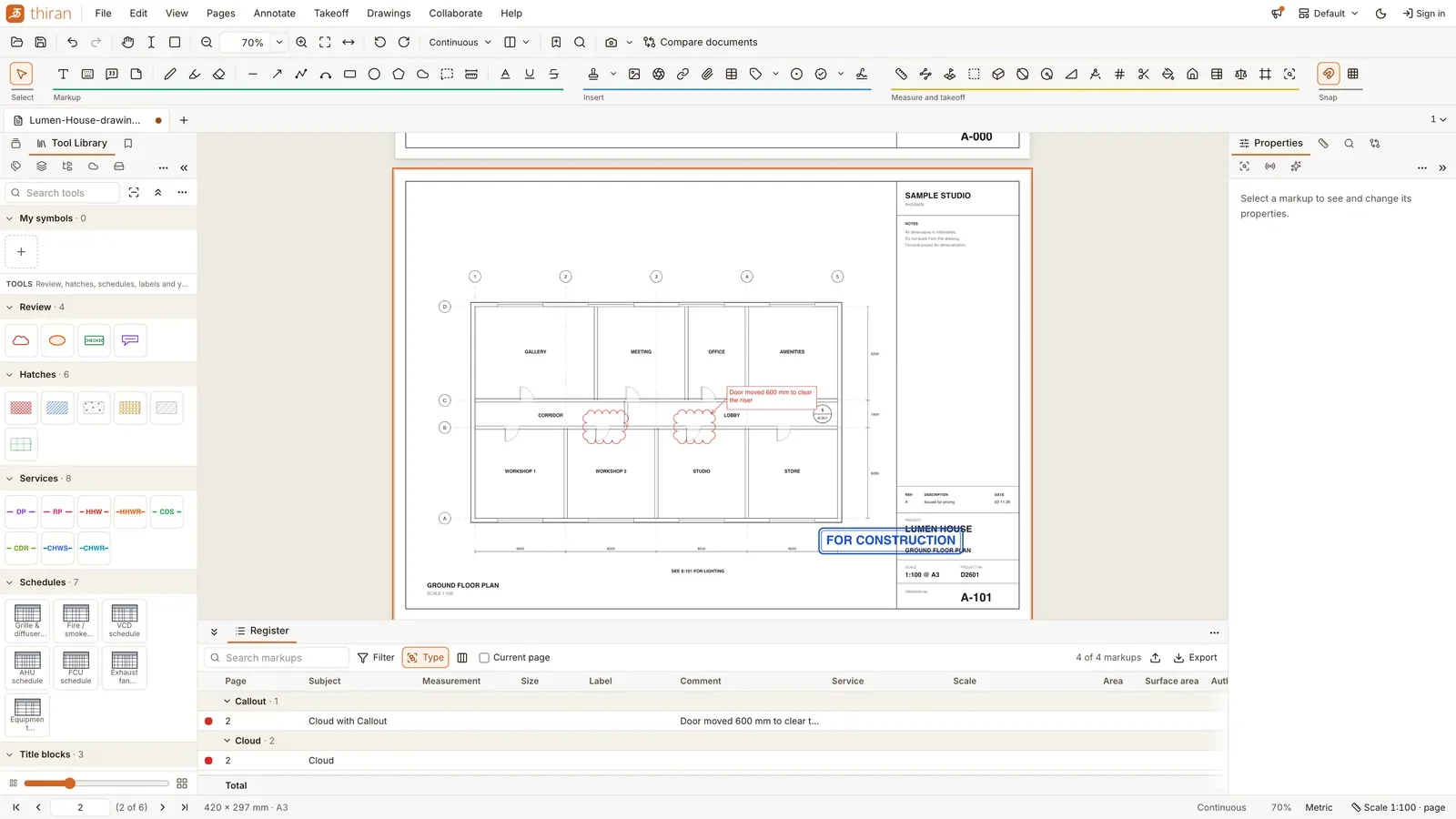
- Stamp: choose the arrow beside Stamp and pick one, such as Approved or For Construction. To make your own, choose New text stamp… (for example CHECKED with your name and the date) or New image stamp… for a logo or signature.
- Highlight, Underline and Strikeout: for redlining a specification. Drag across the PDF's own words.
5Keep each reviewer's redlines apart
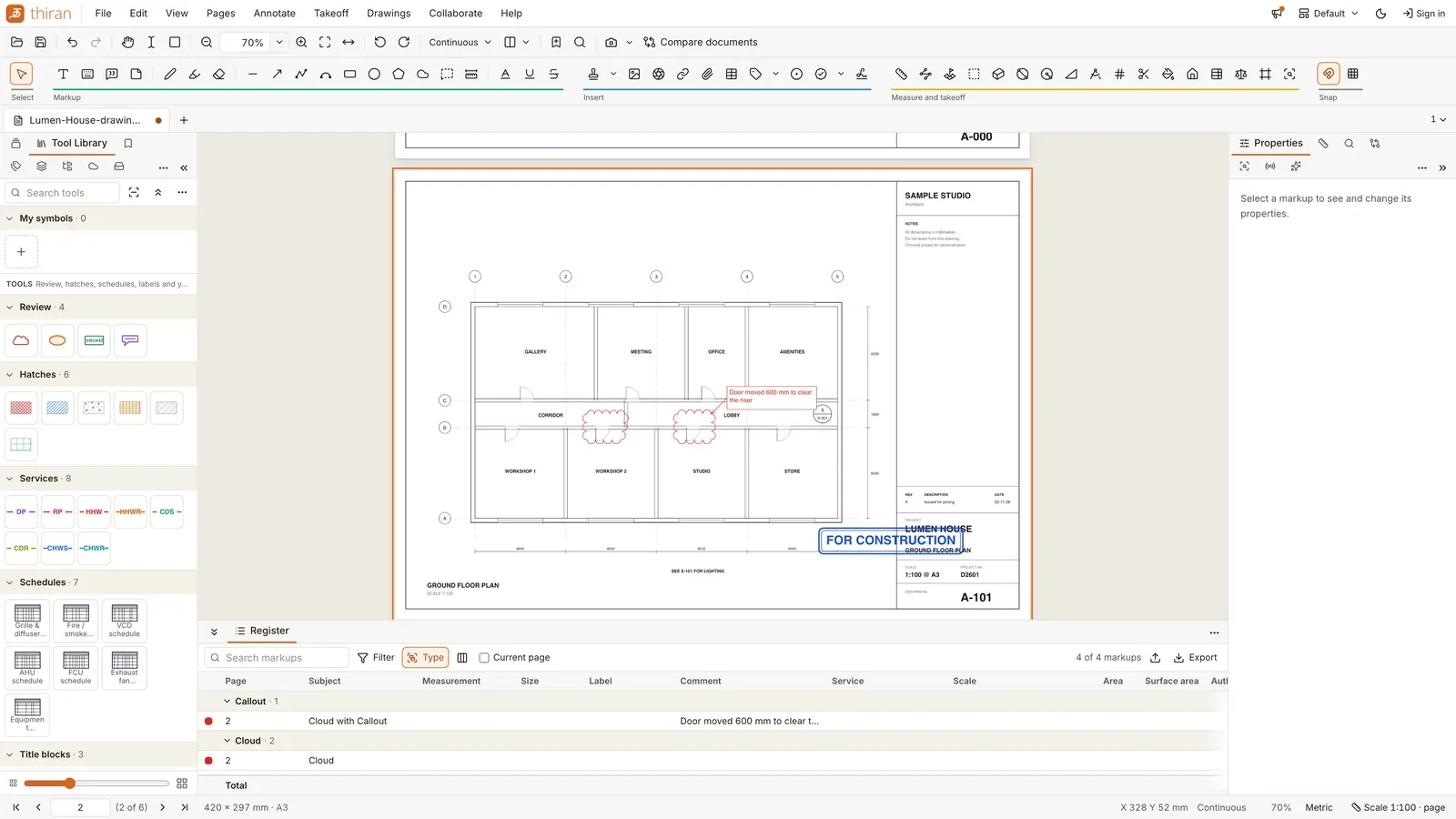
If several people are commenting, give each one a markup layer.
- Choose Markup layers. Add a layer and name it, such as "Client comments".
- Select markups and pick the layer under Properties › Markup › Layer.
- Use the eye beside a layer to hide its markups, or the lock to stop them being moved.
Layers are saved in the PDF too, so other PDF readers can show and hide them.
6Check every markup in the Register
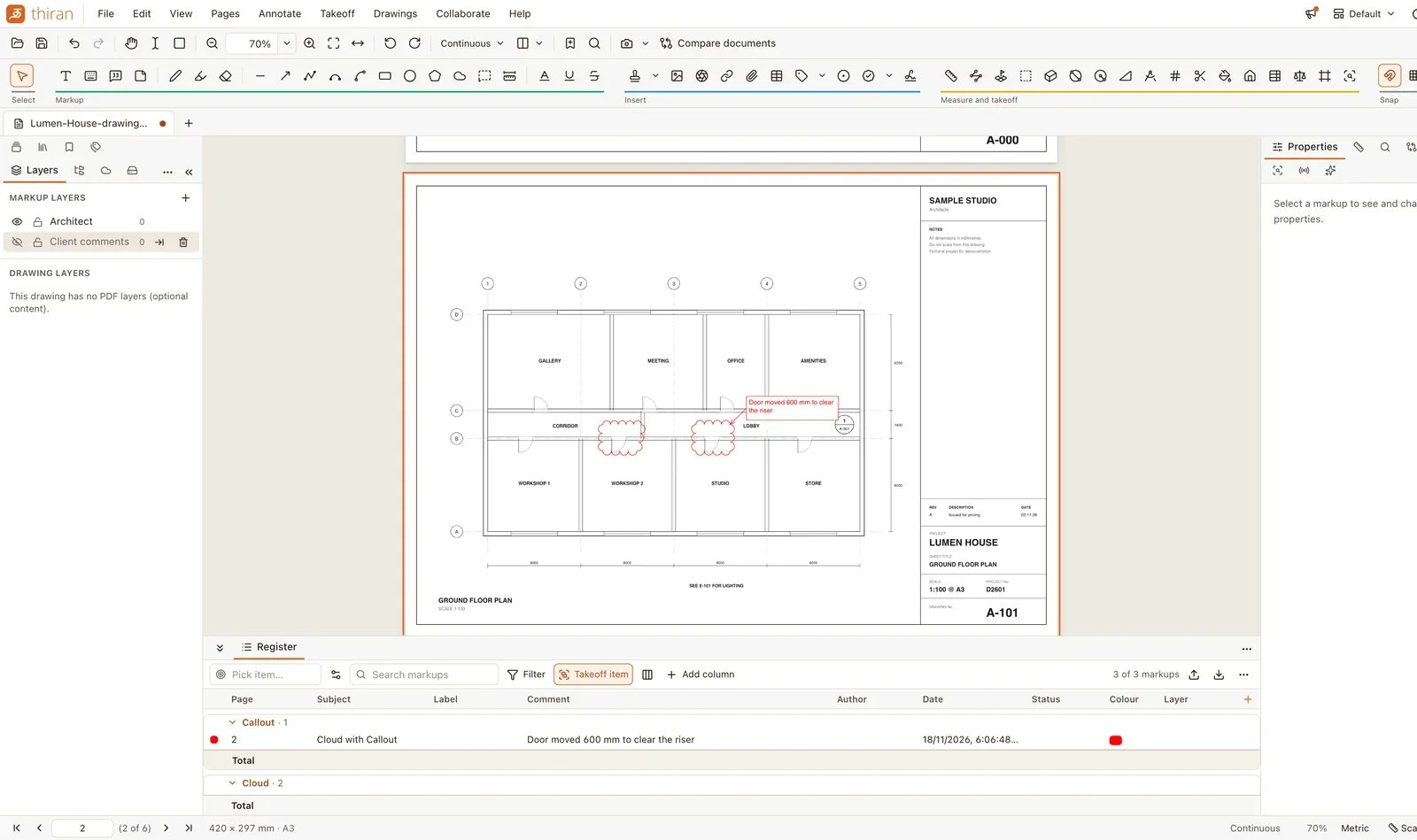
The Register is docked at the bottom of the screen. It lists every markup with its page, type, comment, author, date and status.
- Click a row to jump to that markup on the sheet.
- Set a status on each markup to track what's been answered.
- Point at any markup on the sheet to see who made it and when.
7Save the redlined PDF
- File › Save (Ctrl+S on Windows, Cmd+S on Mac) writes your markups into the PDF. A dot on the tab means there are unsaved changes.
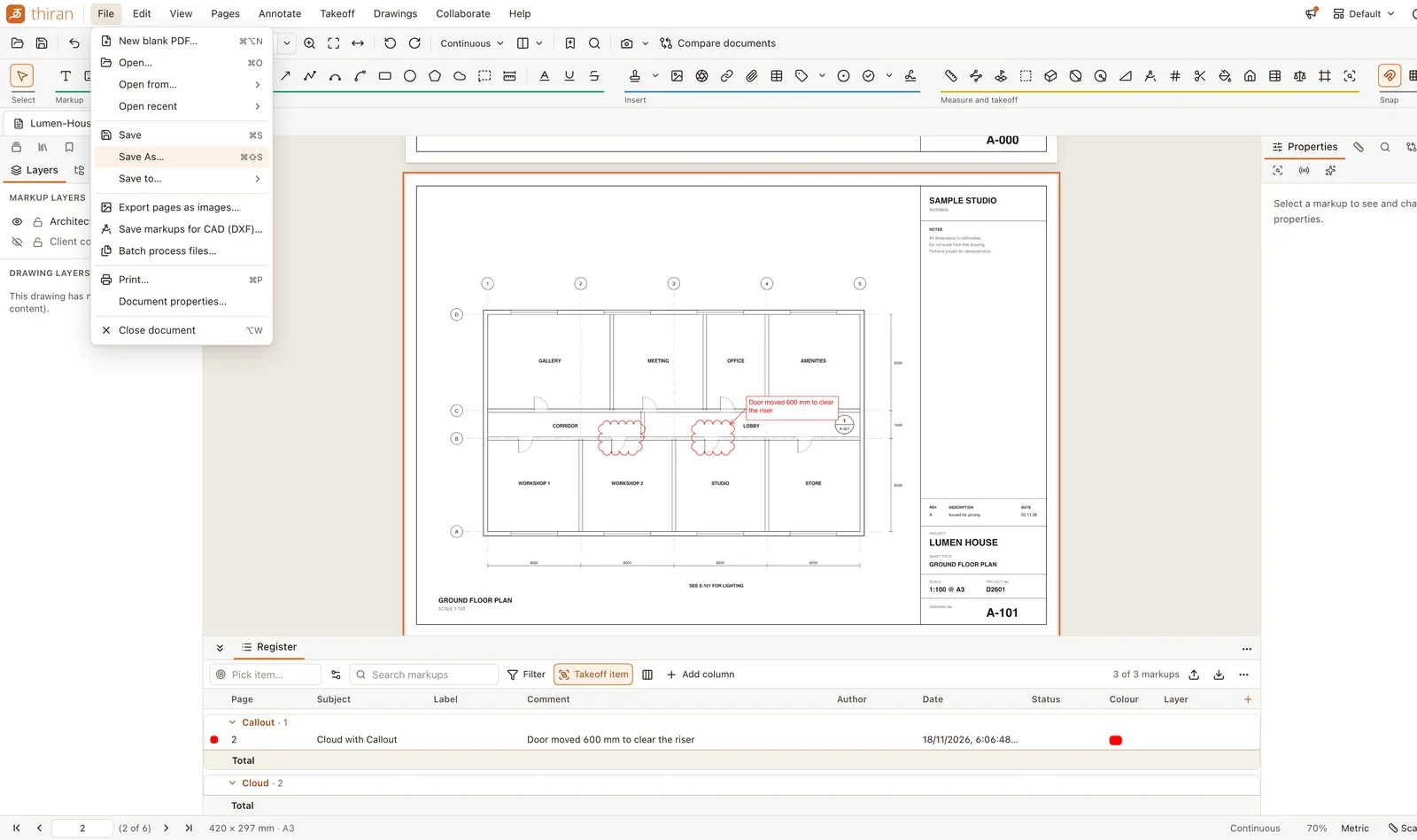
- File › Save As… saves a new copy and leaves the original as it was.
- Opened it from Google Drive or OneDrive? Save puts it back over the same file. If someone else saved that file since you opened it, nothing is overwritten: you're offered a copy instead.
Your markups are saved as standard PDF markups, so the person you send it to sees them in their usual PDF reader.
8Send a copy that can't be changed
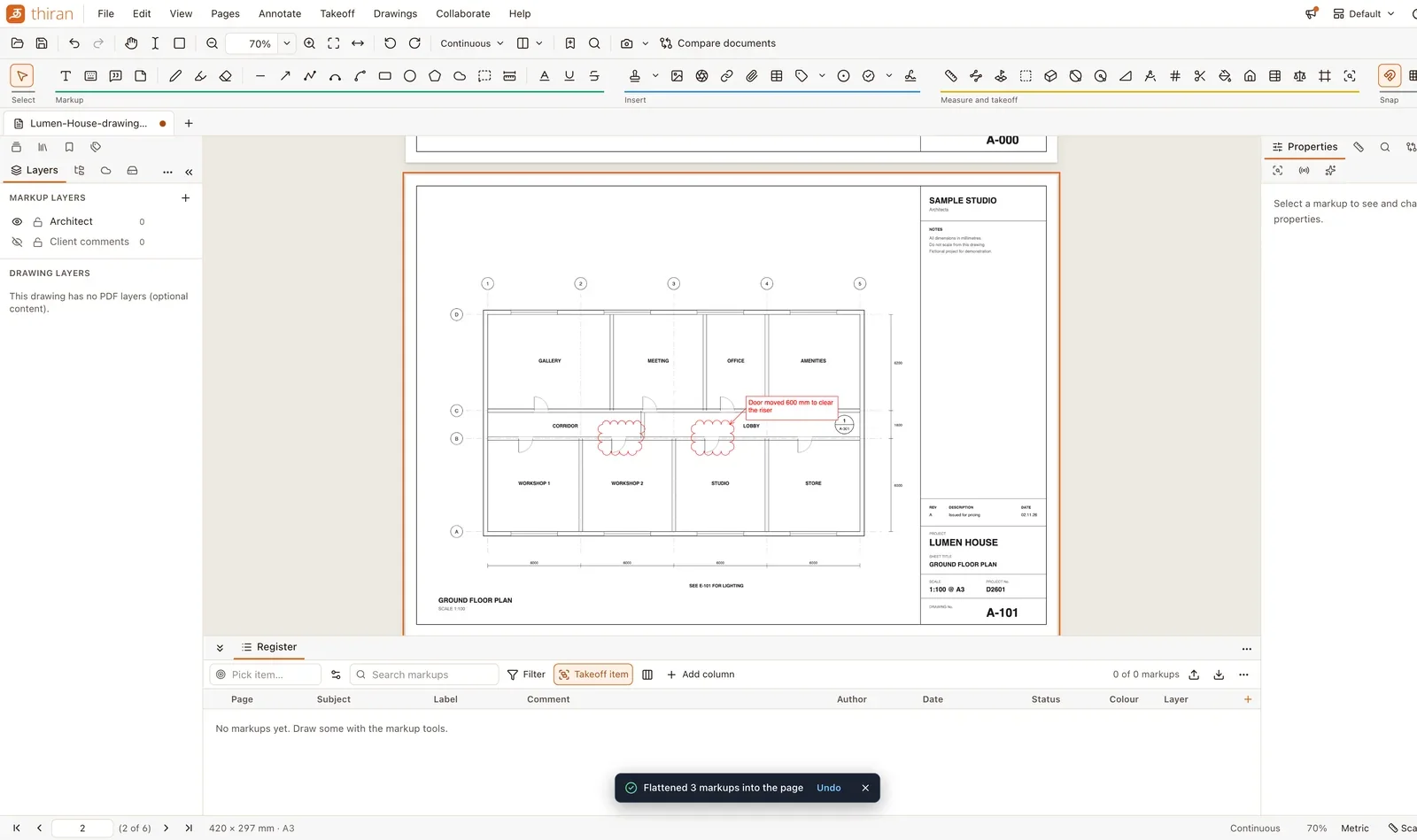
Saved markups can still be moved or edited. To fix them in place before you issue a drawing, flatten them on a copy:
- Choose Save As… first, so you keep a copy with live markups.
- Choose Flatten all markups, or select some and choose Flatten selected markups.
- They become part of the drawing straight away. If that was a slip, choose Undo in the message that appears. Unflatten markups brings them back while the file is still open.
- Save.
9Print the redlines
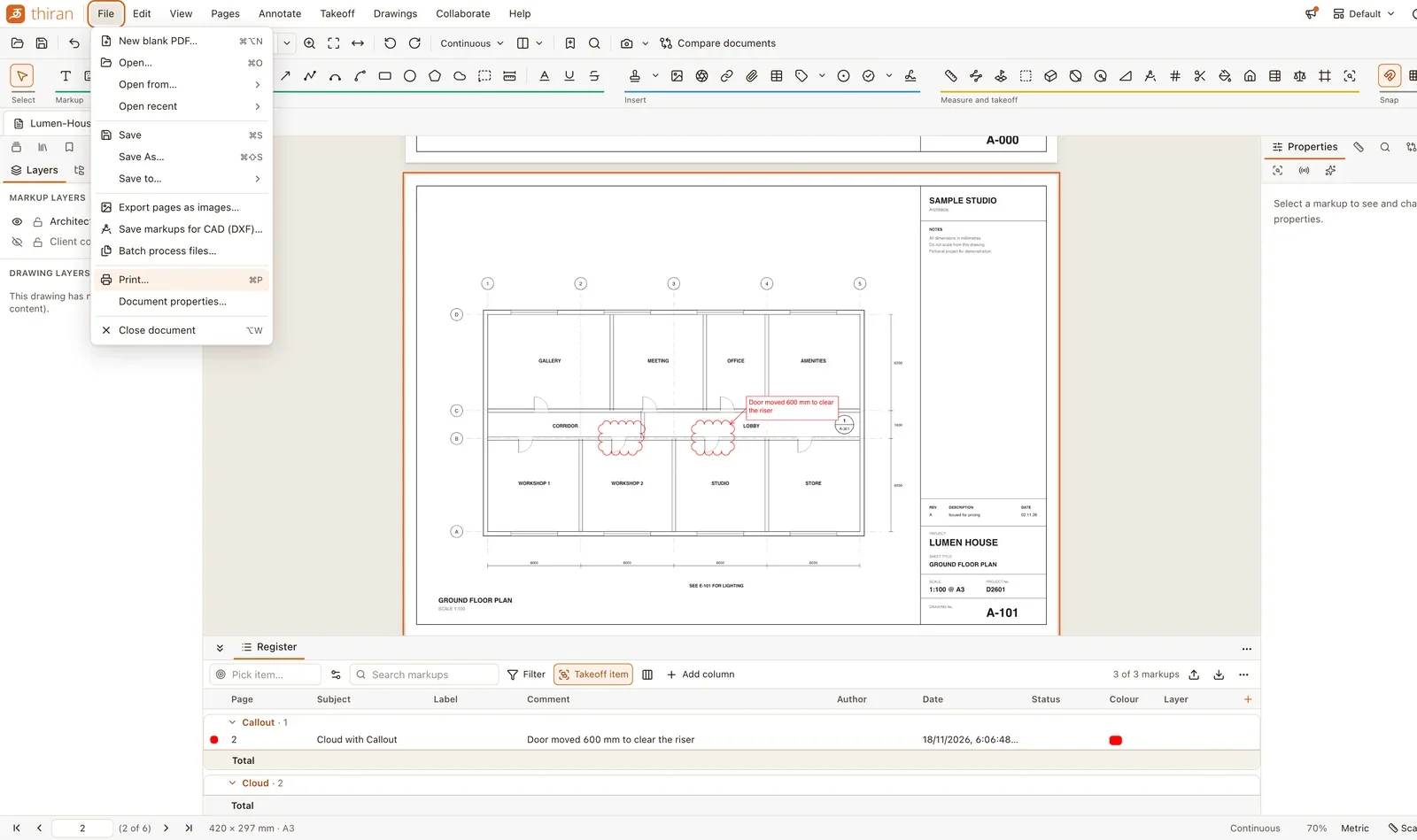
Choose File › Print… (Ctrl+P on Windows, Cmd+P on Mac). The PDF prints with your markups on it.
To print or flatten a whole stack of PDFs in one go, use File › Batch process files…, pick the files and choose the job.
Tips
- Save your favourite styles. A cloud you've set up just right can be saved as a tool in the Tool Library and reused on every job.
- Too big to email? Reduce file size… makes the PDF smaller for email or upload.
- Need a picture instead? File › Export pages as images… saves pages as PNG or JPEG. You choose the pages, the resolution and whether the markups are included.
Common questions
What does "redline" mean on a drawing?
Redlining means marking changes or comments on a drawing, usually in red: clouds round what changed and notes saying why.
Will my markups show up in other PDF readers?
Yes. They're saved inside the PDF, so other PDF readers show them.
How do I print a redlined PDF?
Choose File › Print… in Thiran. The PDF prints with every markup on it.
Can I stop people changing my redlines?
Yes. Flatten them on a copy before you send it (step 8). They become part of the drawing and can't be moved or edited.
Can I mark up a scanned drawing?
Yes. Markups work on any PDF page, scanned or not.
Try Thiran free for 7 days
Every markup tool in this guide is in the free trial, on Mac, Windows and the web. No card needed.