 thiran
What you need
- A PDF drawing, such as a floor plan. One sheet or a whole set both work.
- Thiran on Mac, Windows or the web. The 7-day free trial has every tool.
1Check the scale first
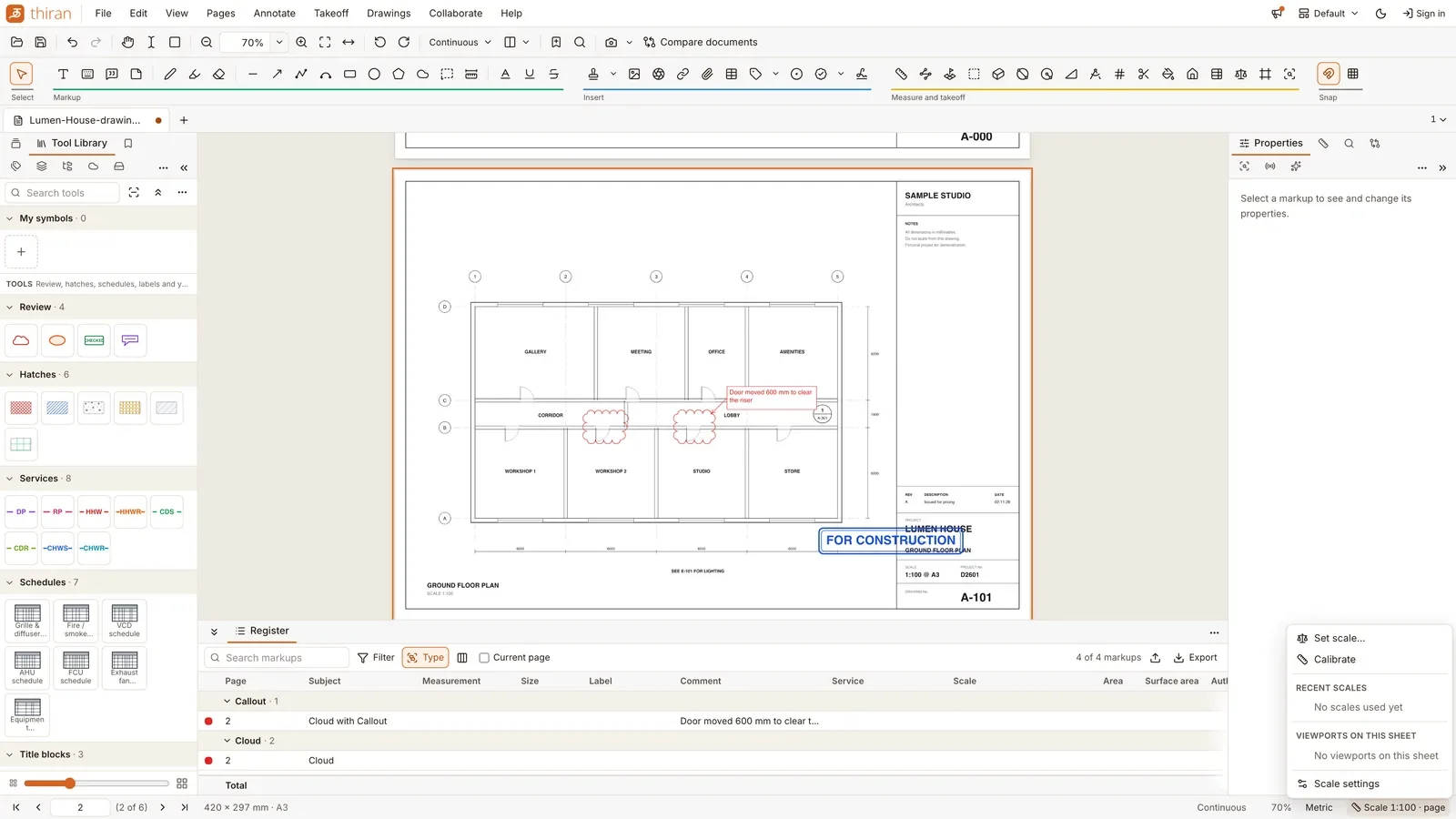
Open the drawing and look at the scale in the status bar at the bottom of the screen.
- If it shows a scale, such as 1:100, it was read from the drawing. Check it matches the title block.
- If it says Not scaled, set it using step 2 or 3.
2Pick the scale from a list
Use this when you know the scale and the sheet was printed at its proper size.
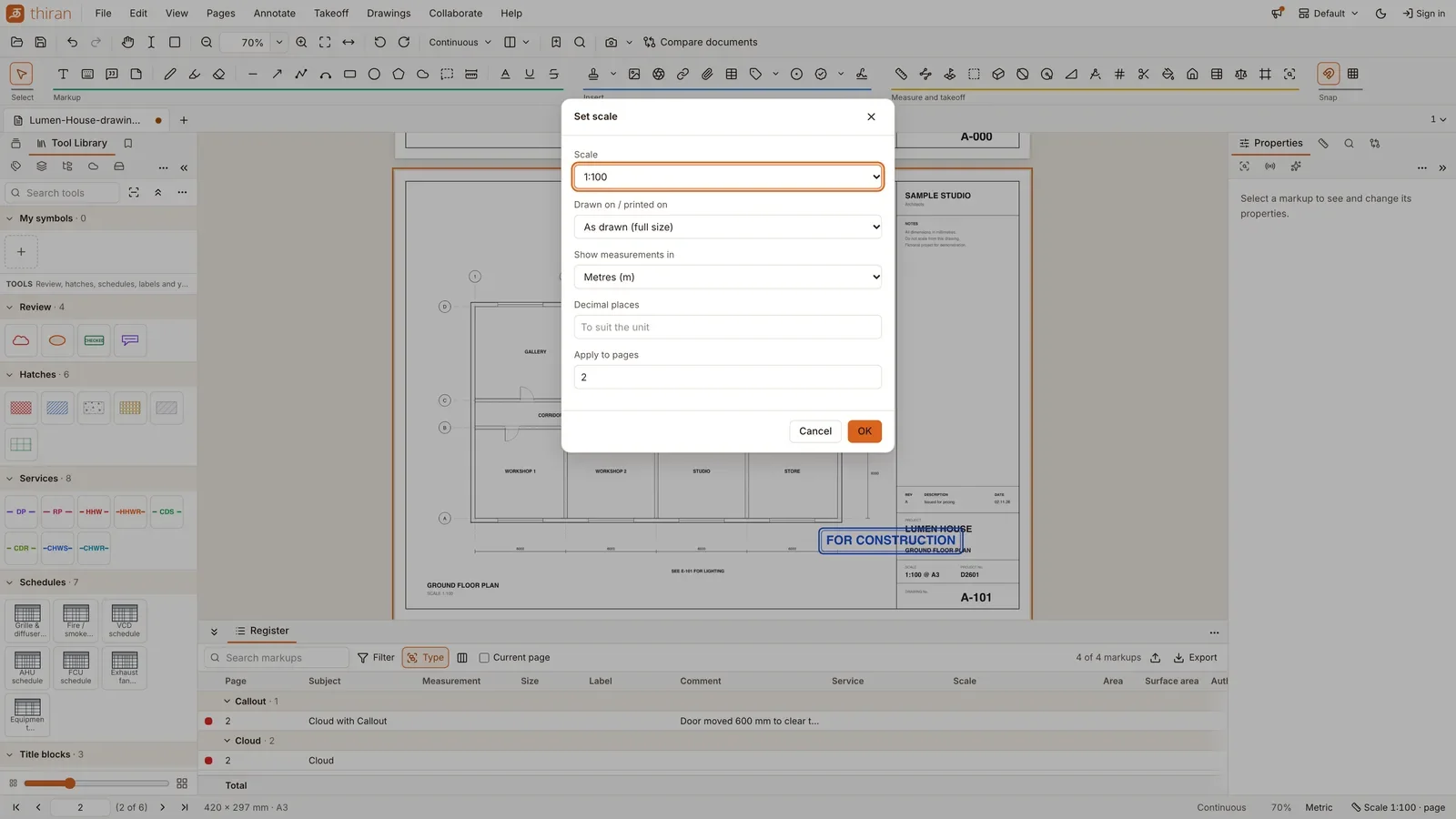
- Click the scale in the status bar and choose Set scale…
- Pick the scale, such as 1:100.
- If an A1 sheet was printed at A3, say so here. Thiran works out the difference.
- Choose the pages it applies to.
3Or calibrate from a known distance
Use this when the scale isn't written down, or the sheet was printed or scanned at an unknown size.
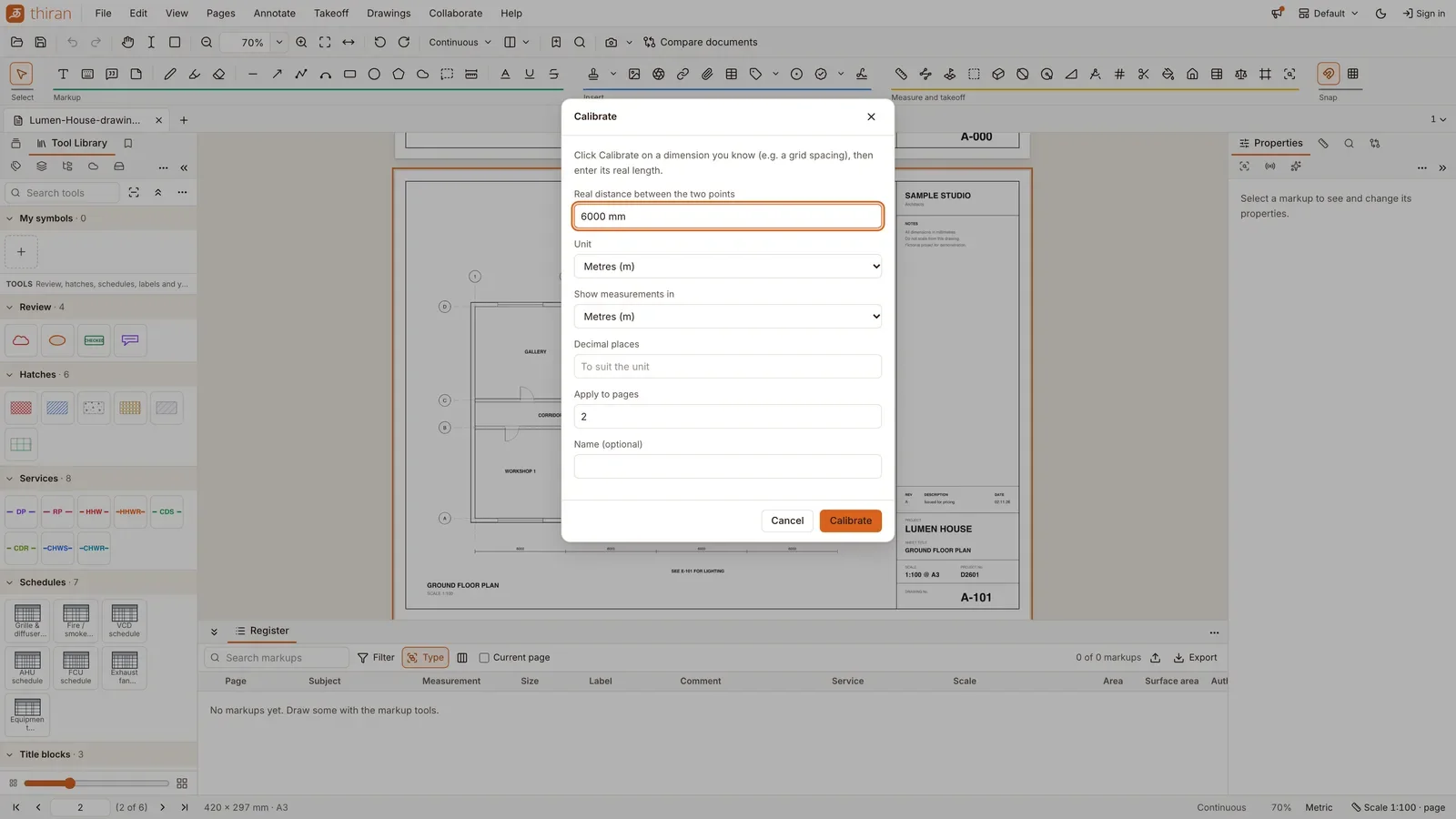
- Choose Calibrate.
- Click two points a known distance apart, such as two grid lines.
- Type the real distance, for example 6000 mm or 6 m.
The sheet now measures to scale.
4Give a detail its own scale
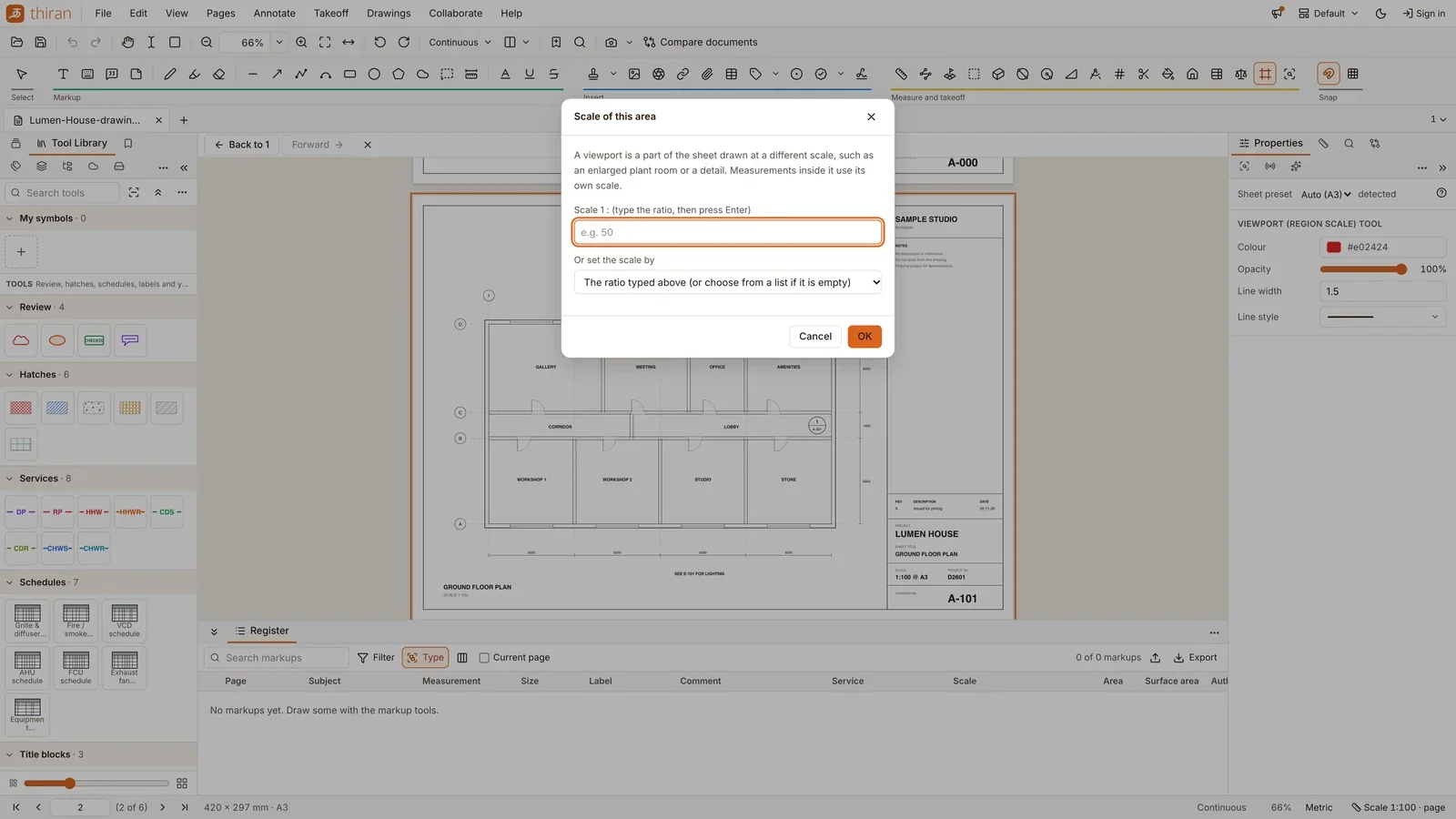
Many sheets mix scales: a 1:100 plan with a 1:20 detail beside it. Give the detail its own scale area, called a viewport.
- Choose Viewport (region scale).
- Drag a box round the detail. If a scale is written inside the box, it's already filled in.
- Type the ratio (20 for 1:20) and press Enter.
Measurements inside the box now use that scale. The rest of the sheet keeps the page scale. Views titled with their scale, such as SCALE 1:50, get a viewport automatically when the drawing opens.
5Use the same scale on every page
Open the Measurements panel and choose All pages to copy this page's scale to every page.
6Check before you measure
Measure a length you already know, such as a grid spacing, before you start your takeoff. If it's out, set the scale again. Anything you've already measured updates straight away.
Change the measurement units
Once the sheet is to scale, you can show measurements in whatever units you work in. There are three places to change them.
Metric or imperial for everything
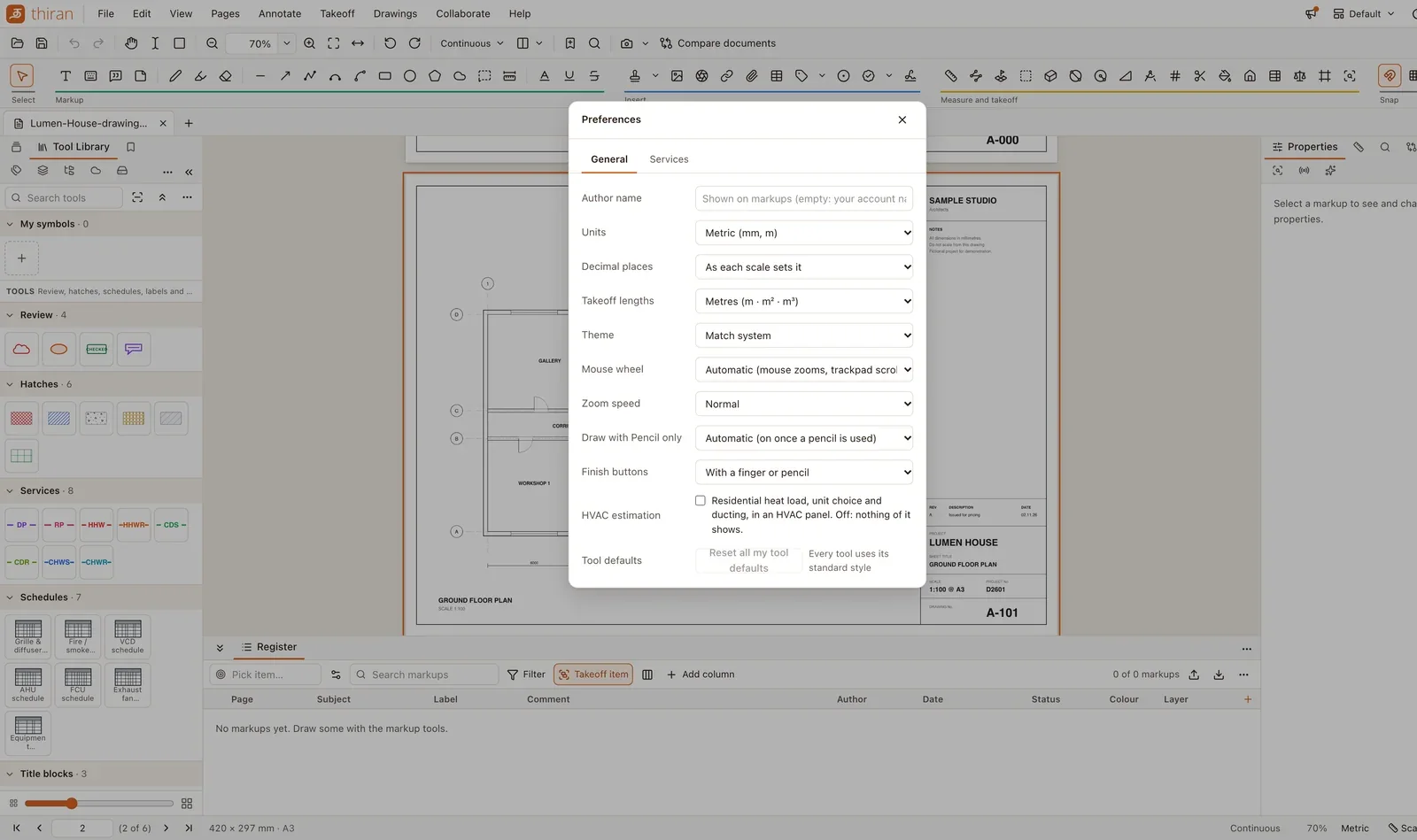
- Open Edit › Preferences.
- Under General, choose Metric (mm, m) or Imperial (in, ft).
New lengths follow this choice: millimetres on a metric sheet, feet and inches on an imperial one. Metric is the default.
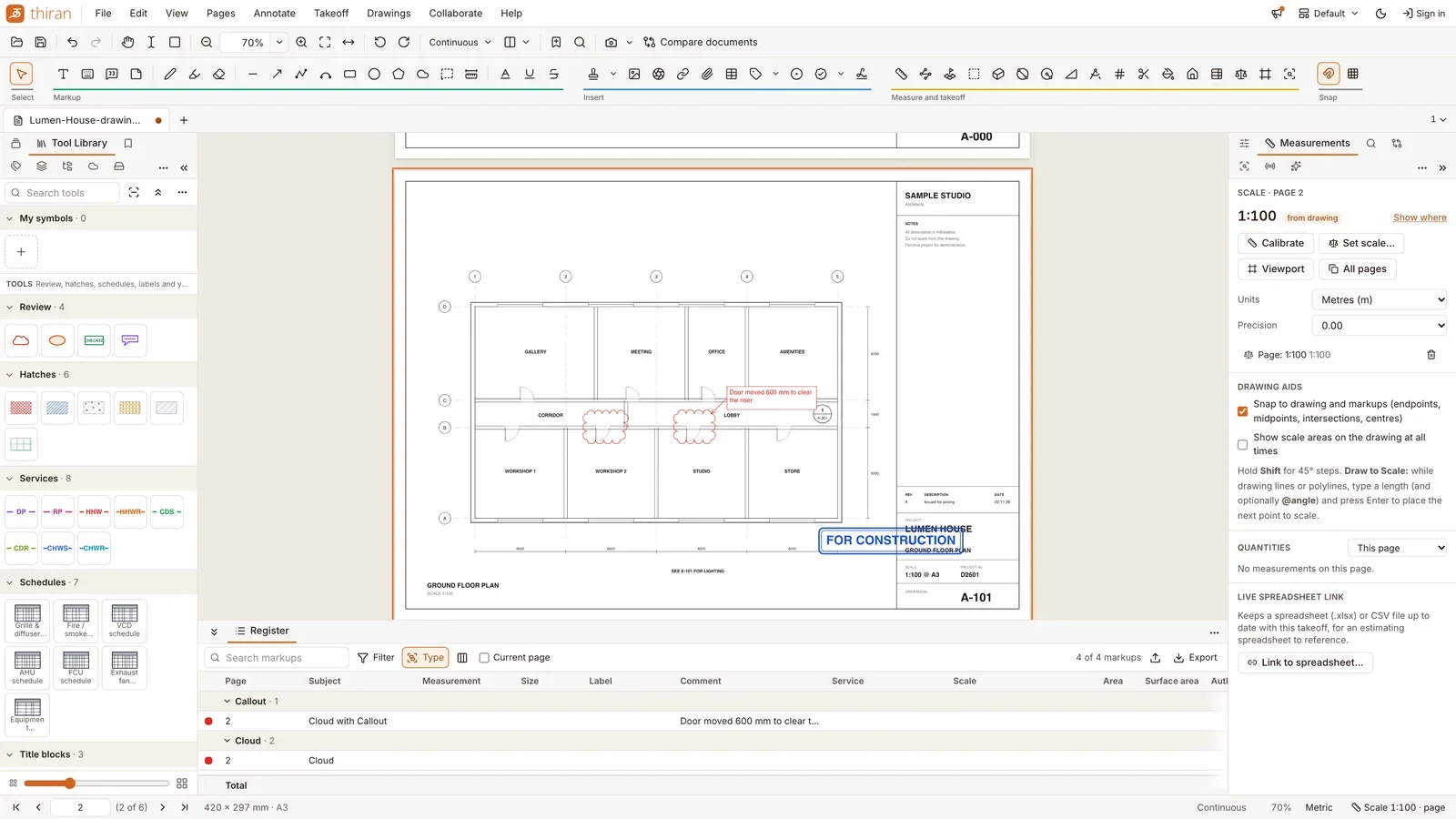
For one sheet
Use this when one sheet needs a different unit from the rest, or you want more or fewer decimal places. In the Measurements panel, choose the units and the number of decimal places for this page.
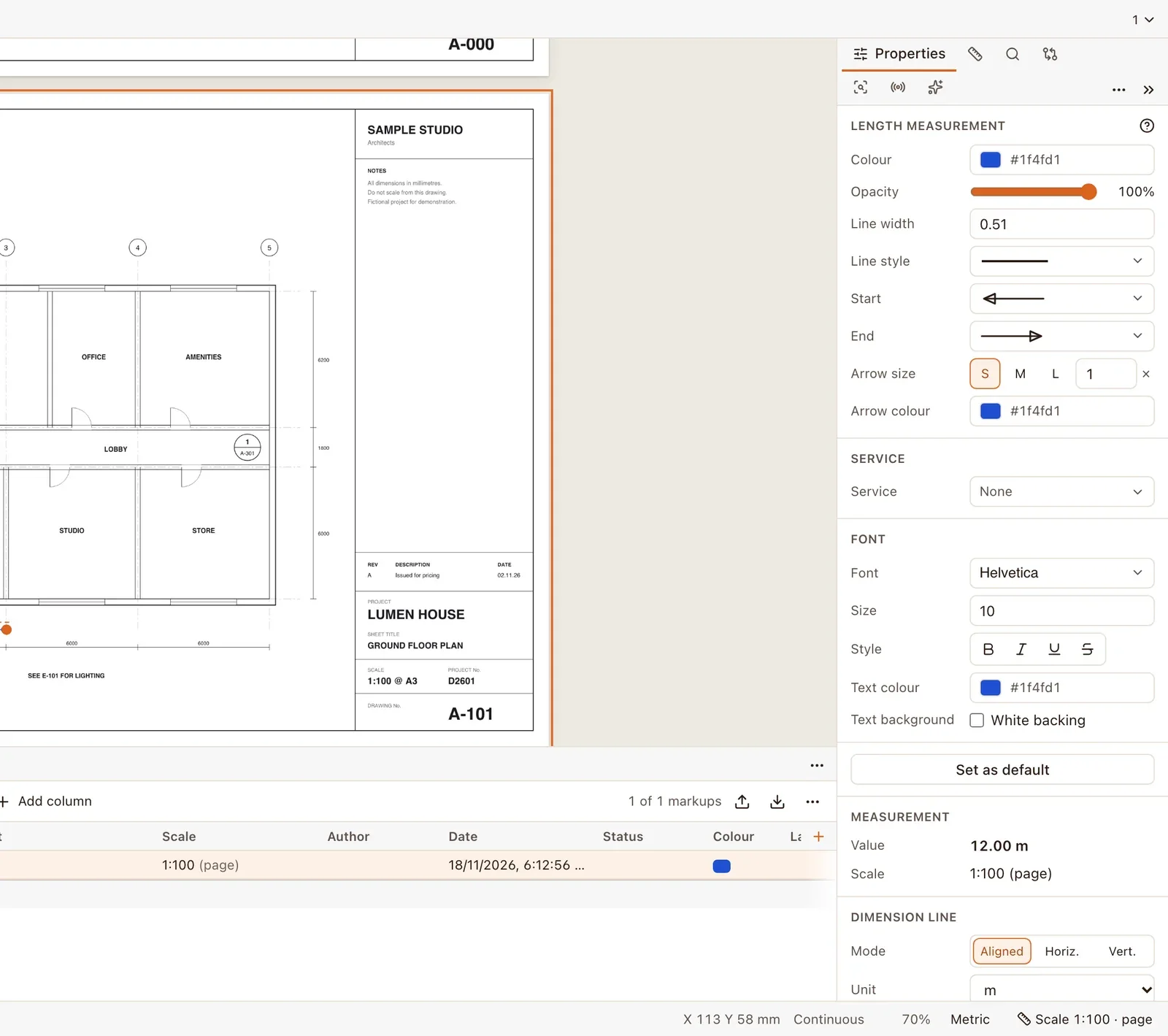
For one line
Sometimes one dimension reads better in another unit, such as a ceiling height in metres on a floor plan measured in millimetres.
- Select the length.
- In Properties, pick its unit: mm, cm, m, in, ft, or feet and inches.
- Choose whether the unit is written after the number.
That line keeps its unit. New lengths still follow your Preferences until you choose a unit for them too.
Decimal places and totals
- Preferences › Decimal places sets one number of decimals for every measurement and total, instead of setting it sheet by sheet.
- Preferences › Takeoff lengths totals lengths in m or cm.
Common questions
Why are my measurements wrong?
Usually the sheet was printed at a different size from the one in the title block, such as an A1 drawing printed at A3. Calibrate from a known distance (step 3), or say the printed size in Set scale (step 2).
Can one sheet have more than one scale?
Yes. Draw a viewport round each part that has its own scale (step 4).
My drawing is imperial. Does that work?
Yes. Choose Imperial in Preferences and lengths show in feet and inches.
Why are my numbers right but the unit wrong?
A number shown without a unit on a metric sheet is in millimetres. Select the line, pick a unit in Properties, and choose to have it written.
Do I have to set the scale again when a new revision comes in?
If the new revision has its scale written on it, it's read when it opens. Check the status bar as in step 1.
Try Thiran free for 7 days
Set the scale once and measure floor plans in the units you work in, on Mac, Windows and the web. No card needed.