 thiran
Before you start: check the scale
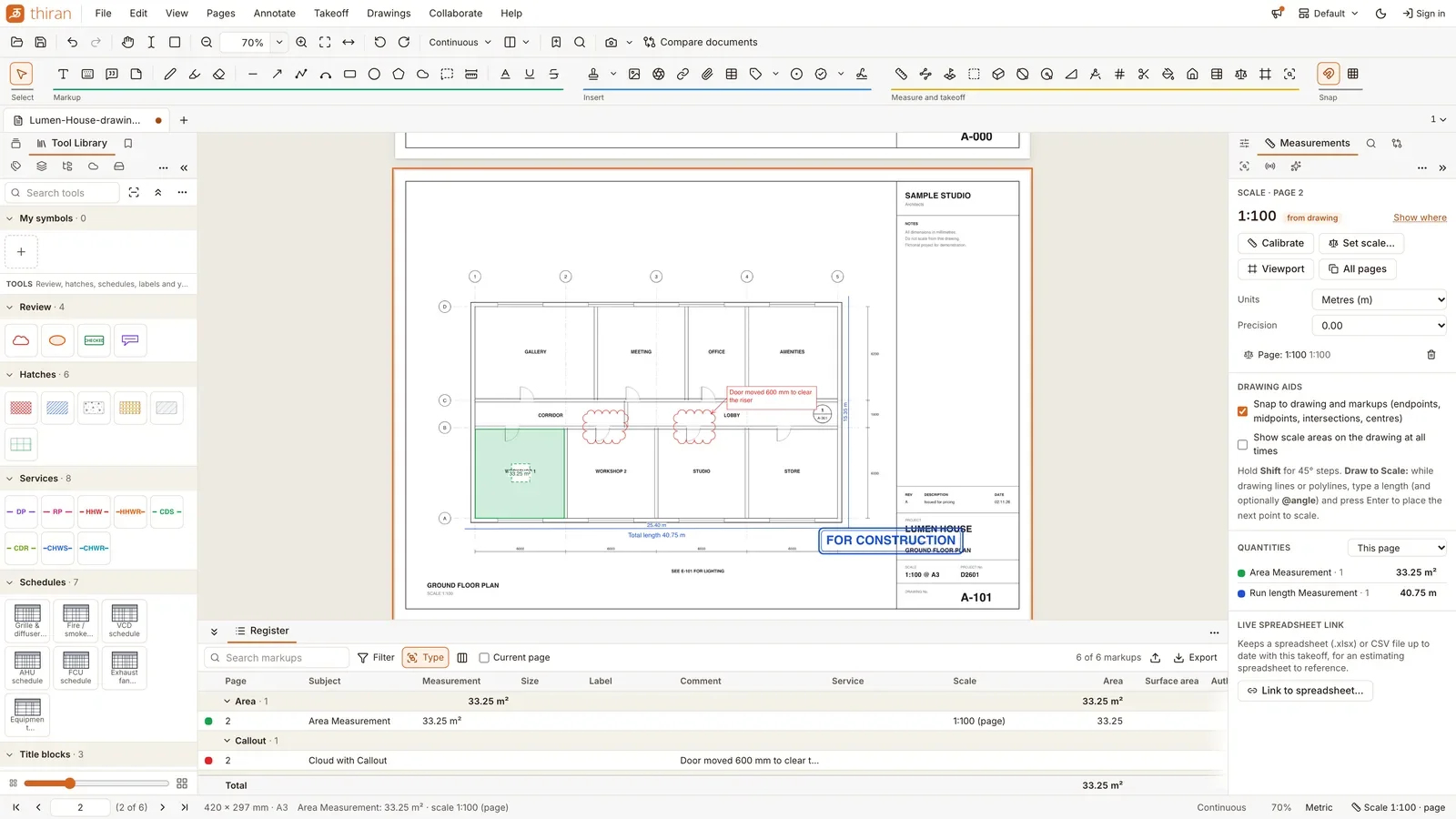
Look at the scale in the status bar. If it says Not scaled, set it first. See How to set the scale on a PDF drawing.
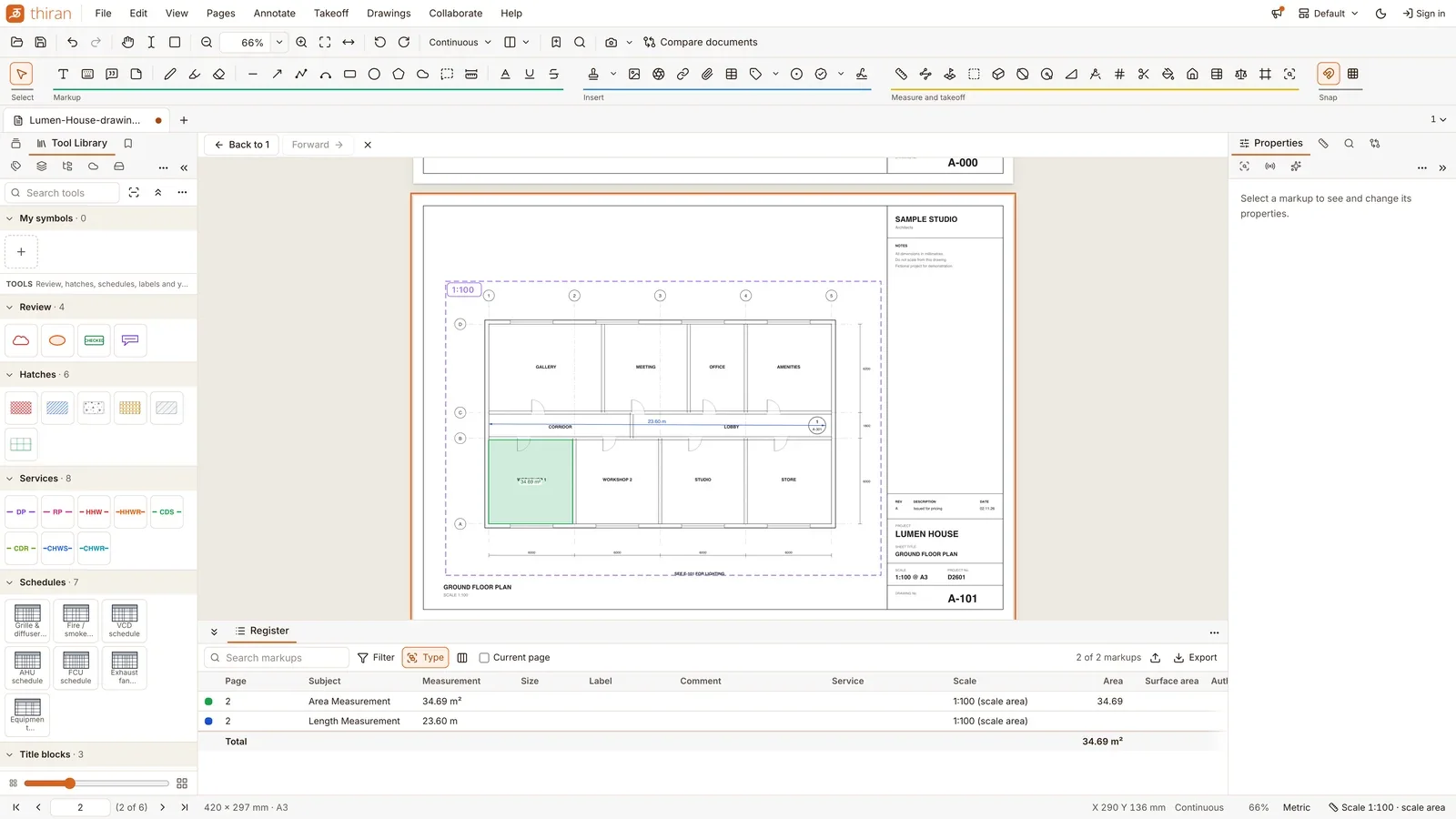
Measure a length
- Choose Length.
- Click the two points, or drag between them. Hold Shift to keep the line at 45° steps.
- The length shows on the sheet and in the Register.
In Properties you can measure along the line (Aligned), or only its Horizontal or Vertical part, and choose the unit it's written in.
Measure a run: walls, pipes and cables
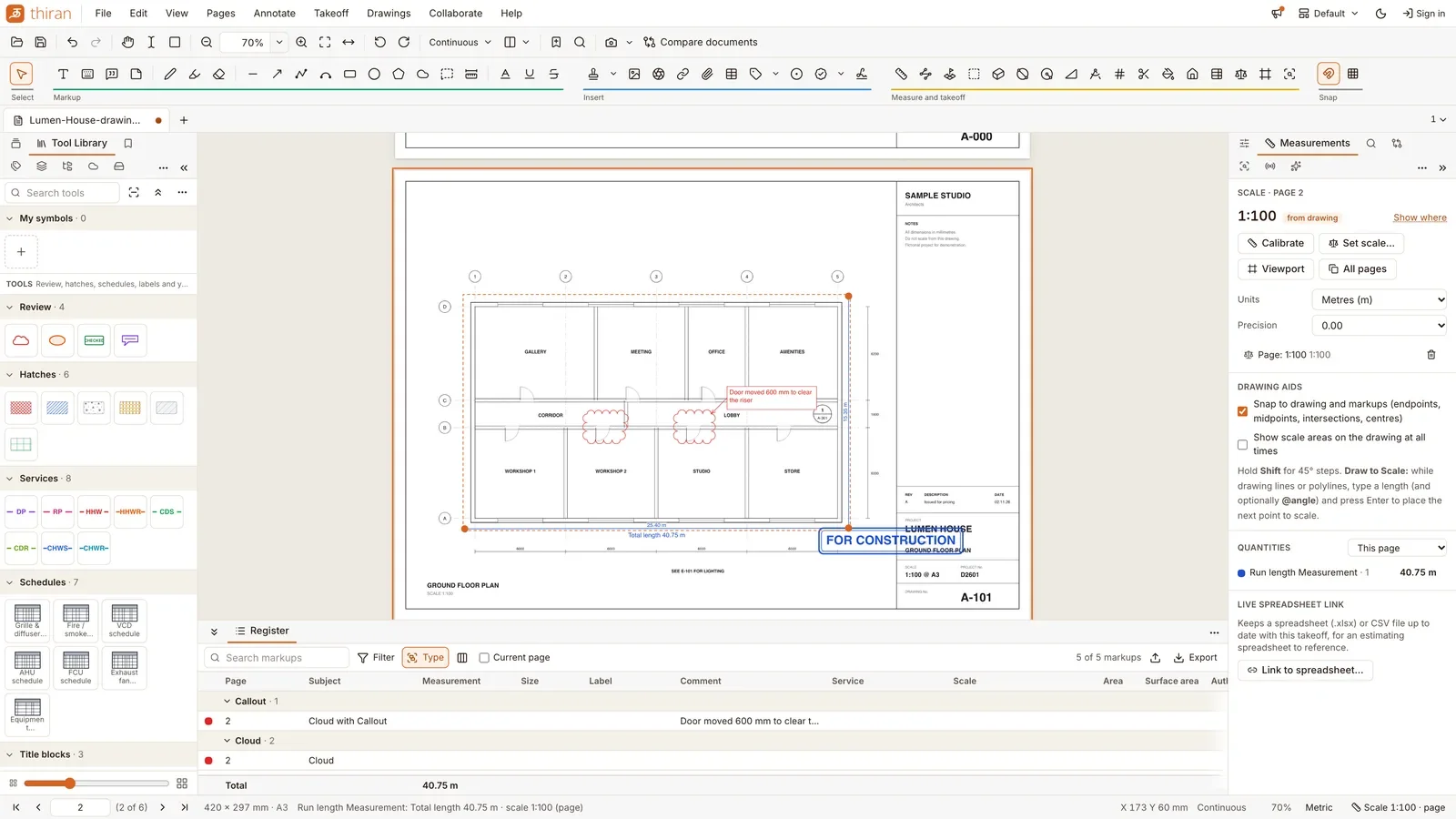
For anything with bends, use Run length.
- Choose Run length.
- Click each point along the run. Backspace takes back the last point.
- For a curved part, press A. Press L to go back to straight lines.
- Double-click or press Enter to finish.
The total shows on the sheet. Properties lists the length of each part, and you can tick Show on the drawing to write them along the run.
Measure an area
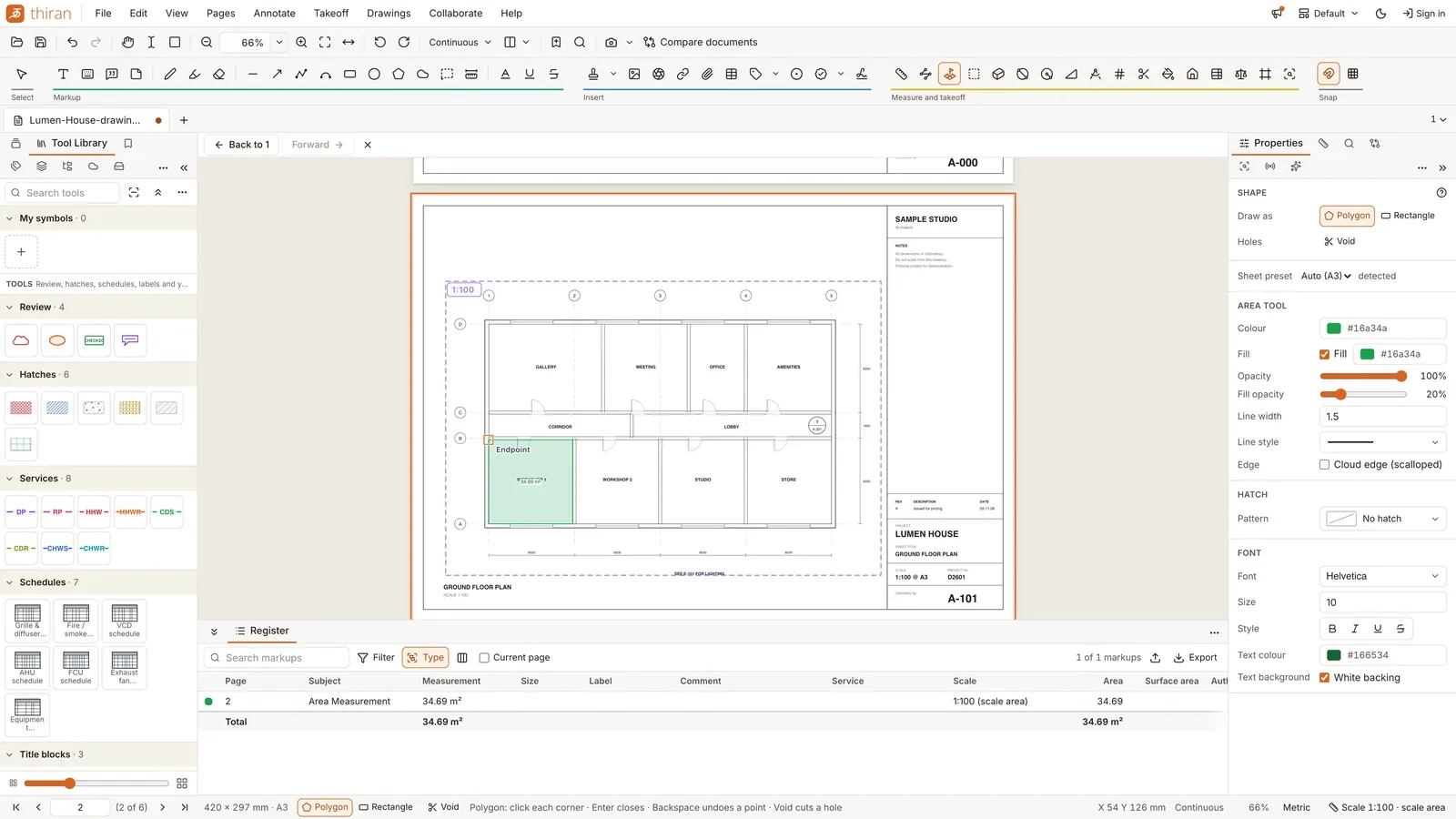
- Choose Area, then Polygon or Rectangle in the status bar.
- Polygon: click each corner, then double-click, press Enter or click the first point to close it. Rectangle: drag from corner to corner.
- The area shows on the sheet. The Area tool stays on, so you can measure room after room. Press Esc to stop.
Take out holes
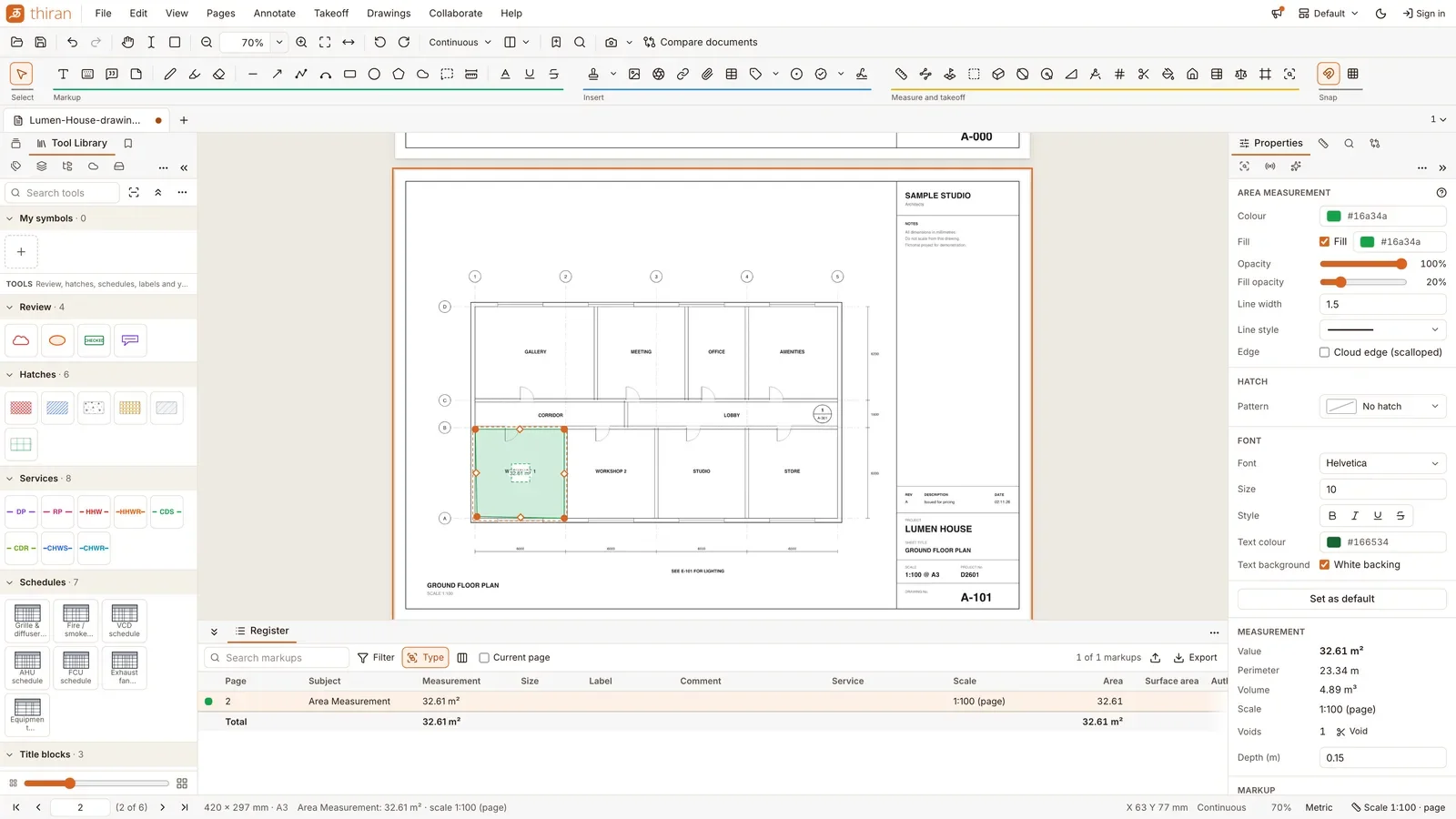
To take out a shaft or a column, press Void in the status bar and draw the hole inside the area. It's taken off the total.
Get a volume
Type a depth under Properties › Measurement › Depth, such as a slab thickness. You get the volume as well as the area.
Click exactly on the drawing
Snap catches the ends, middles and corners of the linework as you click, so your points land on the drawing, not near it. Turn it on or off with the one Snap switch.
See the totals
Open the Measurements panel and look under Quantities. Choose This page or Whole document. Lengths, areas, volumes and counts are totalled by subject.
Give each measurement a clear subject, such as "Wall type A" or "Floor tiles", so the totals group the way you price them.
Common questions
Can I measure in feet and inches?
Yes. Choose the unit in the Measurements panel for the sheet, or in Properties for one line.
My measurement crosses two scales. What happens?
A measurement uses one scale for all of it. Measure each part inside its own scale area.
Can I send the measurements to a spreadsheet?
Yes. See How to count symbols and export quantities to Excel.
Try Thiran free for 7 days
Measure lengths, areas and volumes to scale on Mac, Windows and the web.