 thiran
Count by hand: one click per item
Best for a handful of items.
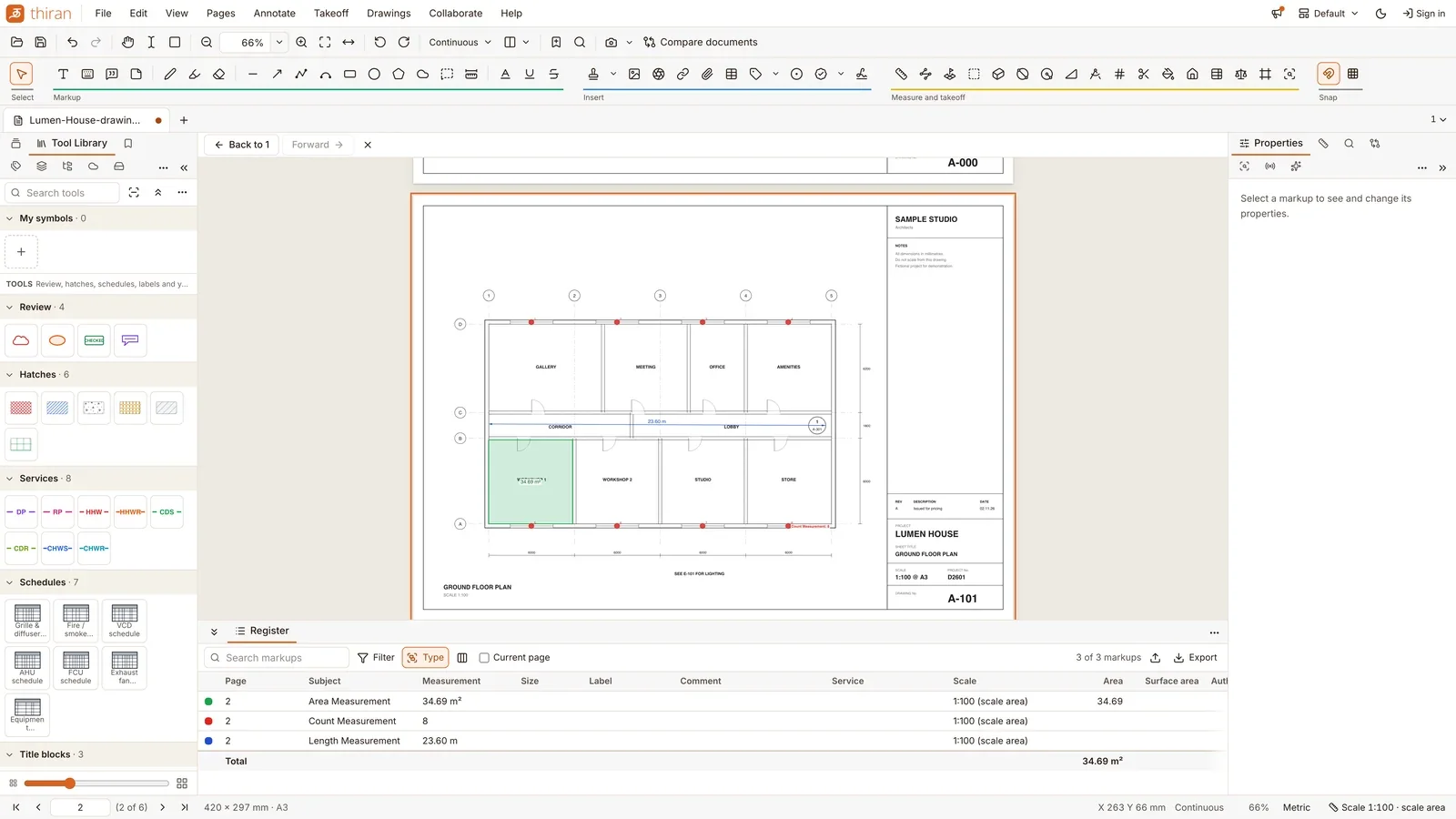
- Choose Count. Pick the symbol and numbering under Properties › Count.
- Click each item on the drawing. Each click adds a numbered dot.
- The running total shows beside the last dot and in the status bar.
- Press Enter or Esc to finish. Start a new count for the next kind of item.
Find every copy at once: Find Similar
Best for lots of the same symbol: lights, outlets, diffusers, sprinkler heads.
- Choose Find Similar on the toolbar.
- Drag a box tightly round one copy of the symbol, with little else inside it.
- Give it a name, such as "Ceiling downlight", and choose where to look: this sheet, the whole document, or all open documents. Choose Search.
- Every copy is outlined on the drawing and listed in the panel. If a symbol is in the sheet's legend, its name is read from there.
- Untick any that are wrong.
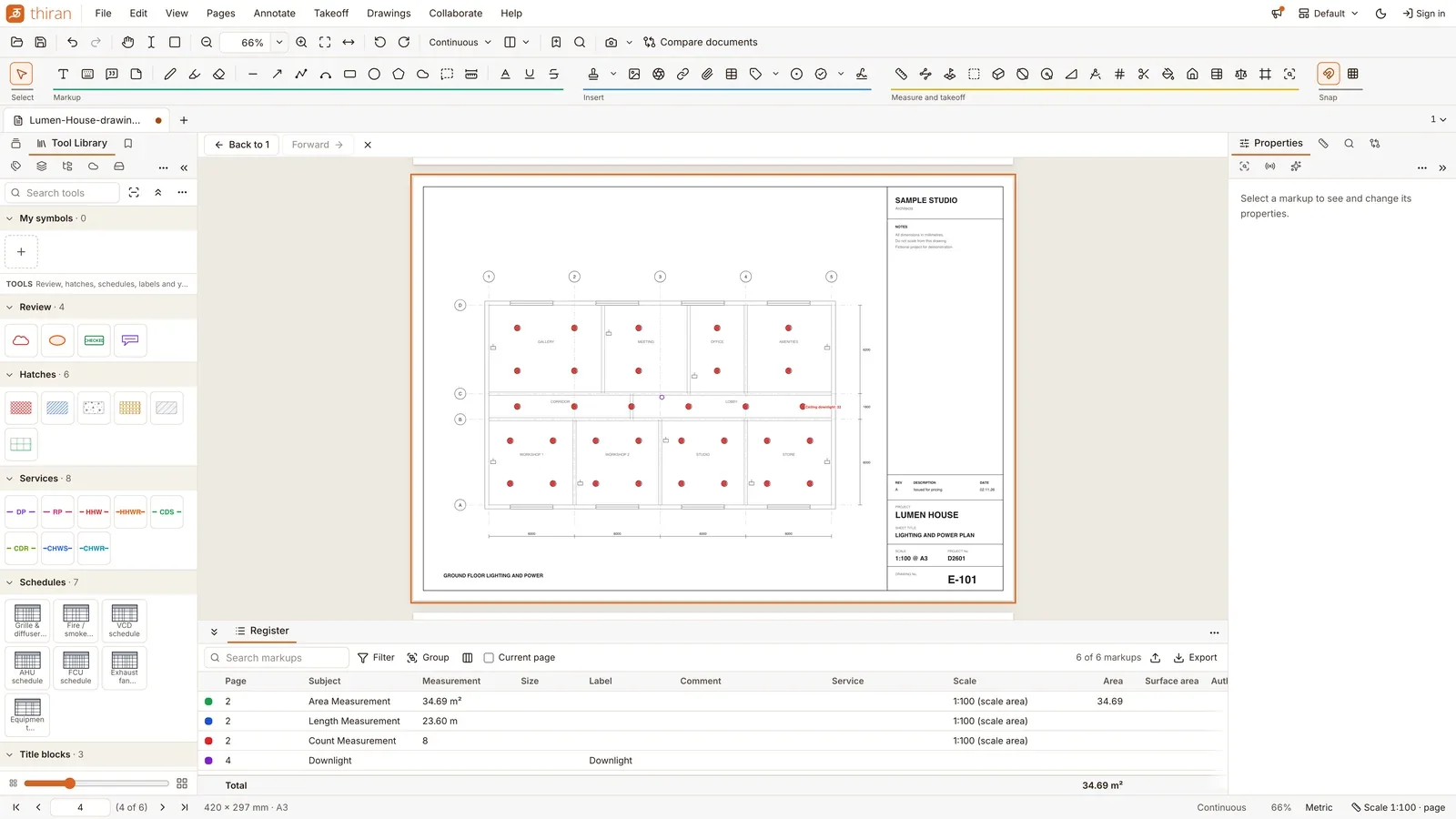
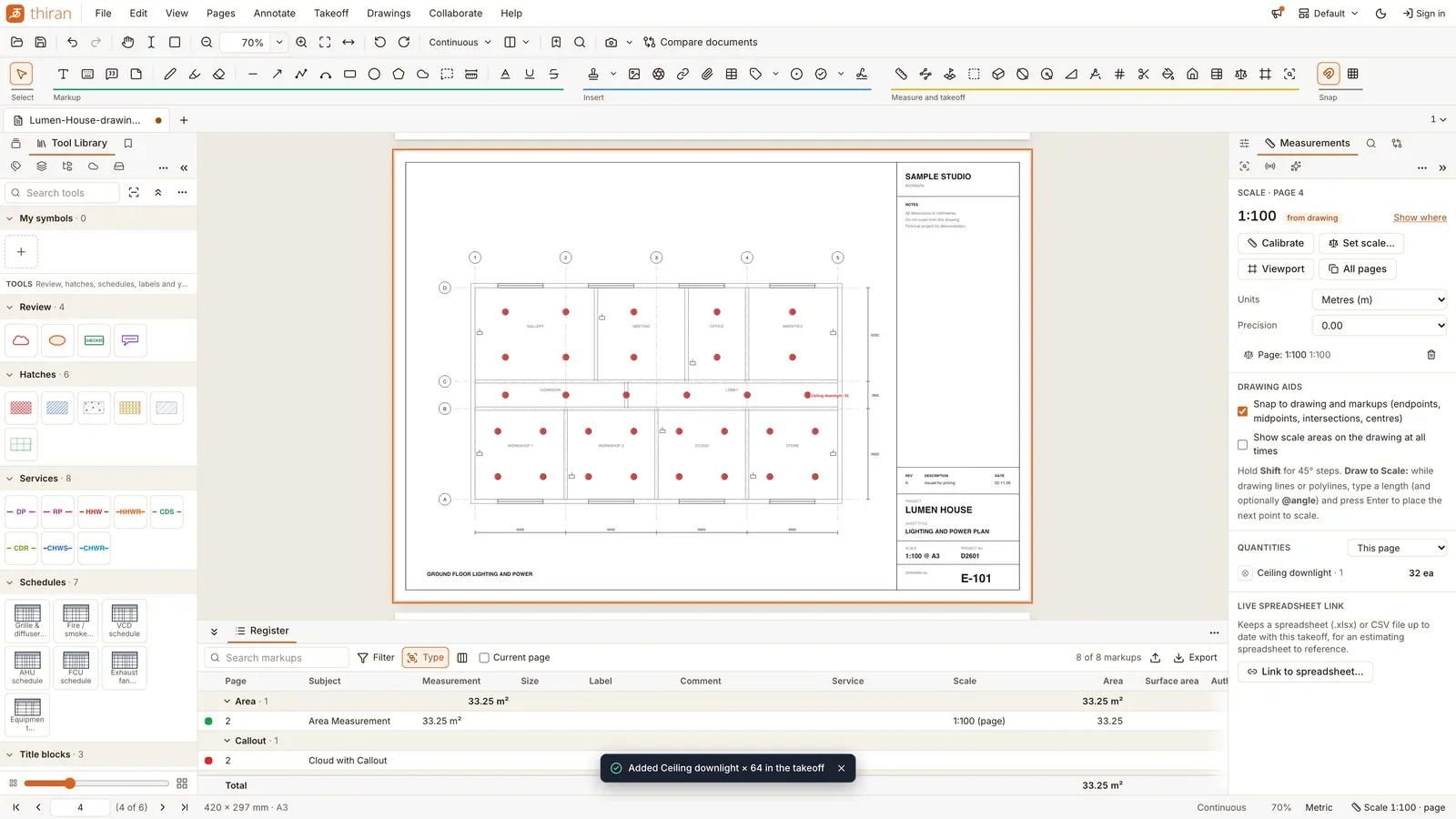
- Choose Add to takeoff. They become one count, with the symbol's picture, in Quantities and the Register. Adding again updates the count. It doesn't double it.
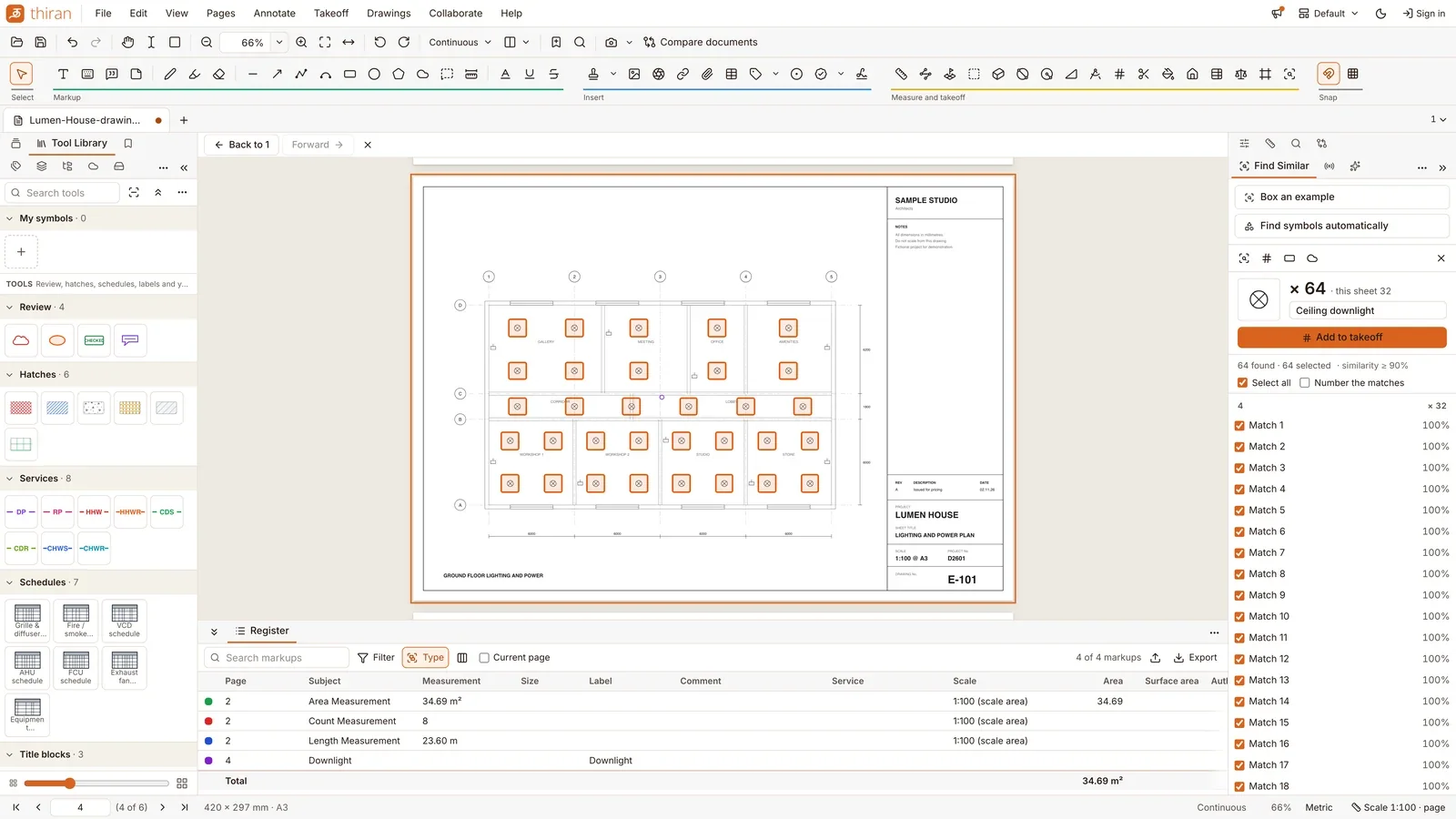
Find Similar works best on clean PDFs exported from design software. Always check the list before adding: symbols that look alike can match.
Check the totals
- Measurements › Quantities totals every count, length, area and volume by subject, for this page or the whole document.
- The Register at the bottom lists every item. Use Group by, Filter and Totals to check it the way you'll price it.
Export to Excel
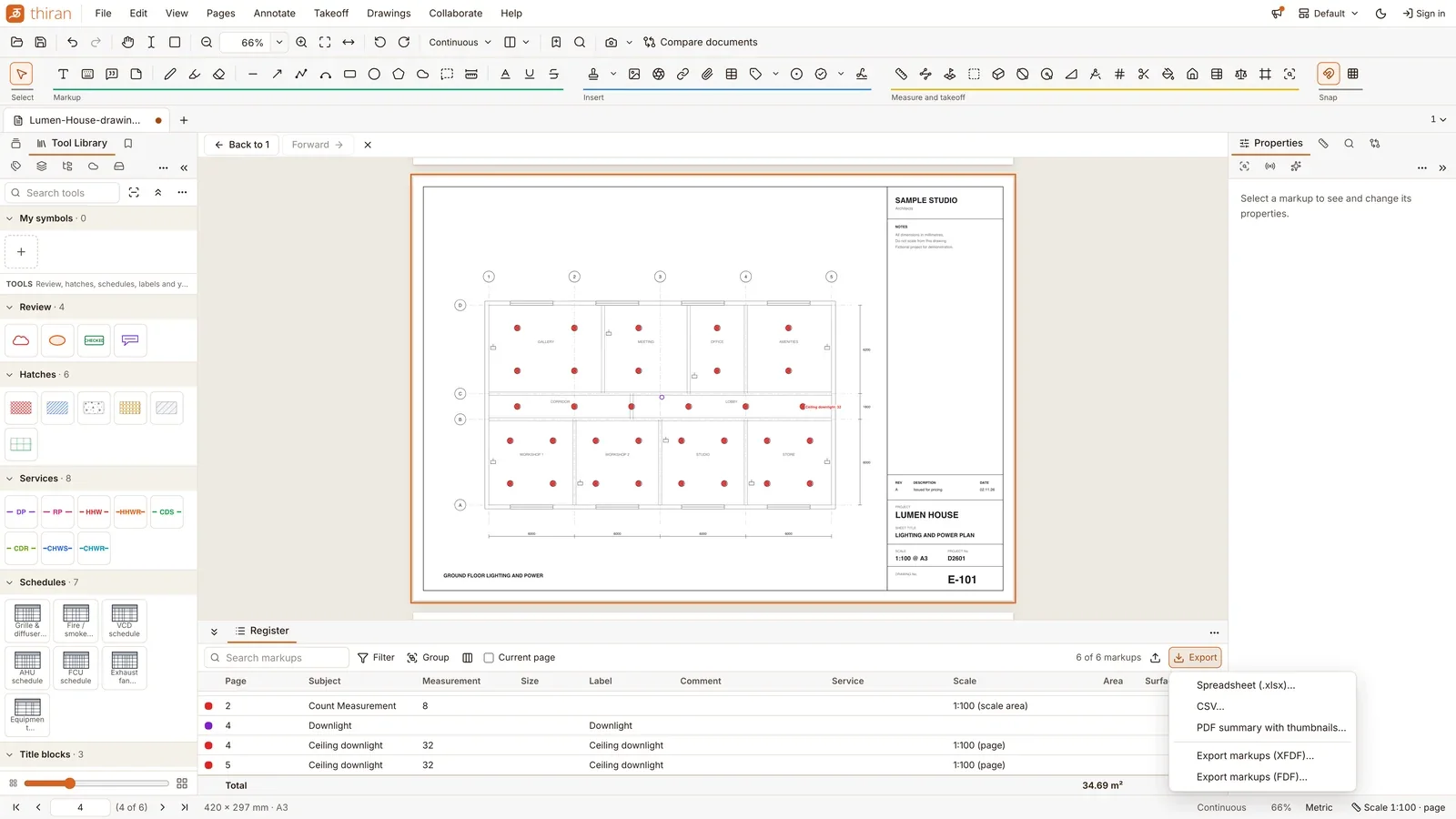
- In the Register, set the columns, filters and grouping you want.
- Choose Export › Spreadsheet (.xlsx)…, or CSV…
- The spreadsheet has the rows you see in the Register, ready for your estimate.
For a printable report, choose Export › PDF summary with thumbnails… instead.
Keep a spreadsheet up to date by itself
In the Measurements panel, under Live spreadsheet link, choose Link to spreadsheet… Thiran keeps that .xlsx or CSV file up to date with your takeoff, so your estimating spreadsheet can read from it as you work.
Common questions
Can I count across a whole drawing set?
Yes. In Find Similar, choose the whole document or all open documents.
Does the export include measurements as well as counts?
Yes. Lengths, areas, volumes and counts all go to the spreadsheet.
Does it work with Excel and Google Sheets?
The export is a standard .xlsx or CSV file, so it opens in Excel, Numbers or Google Sheets.
Try Thiran free for 7 days
Count, measure and export your takeoff on Mac, Windows and the web.