 thiran
1Open both revisions
Open the newer revision. Open the older one too, or leave it on your computer and pick it in the next step.
2Run the compare
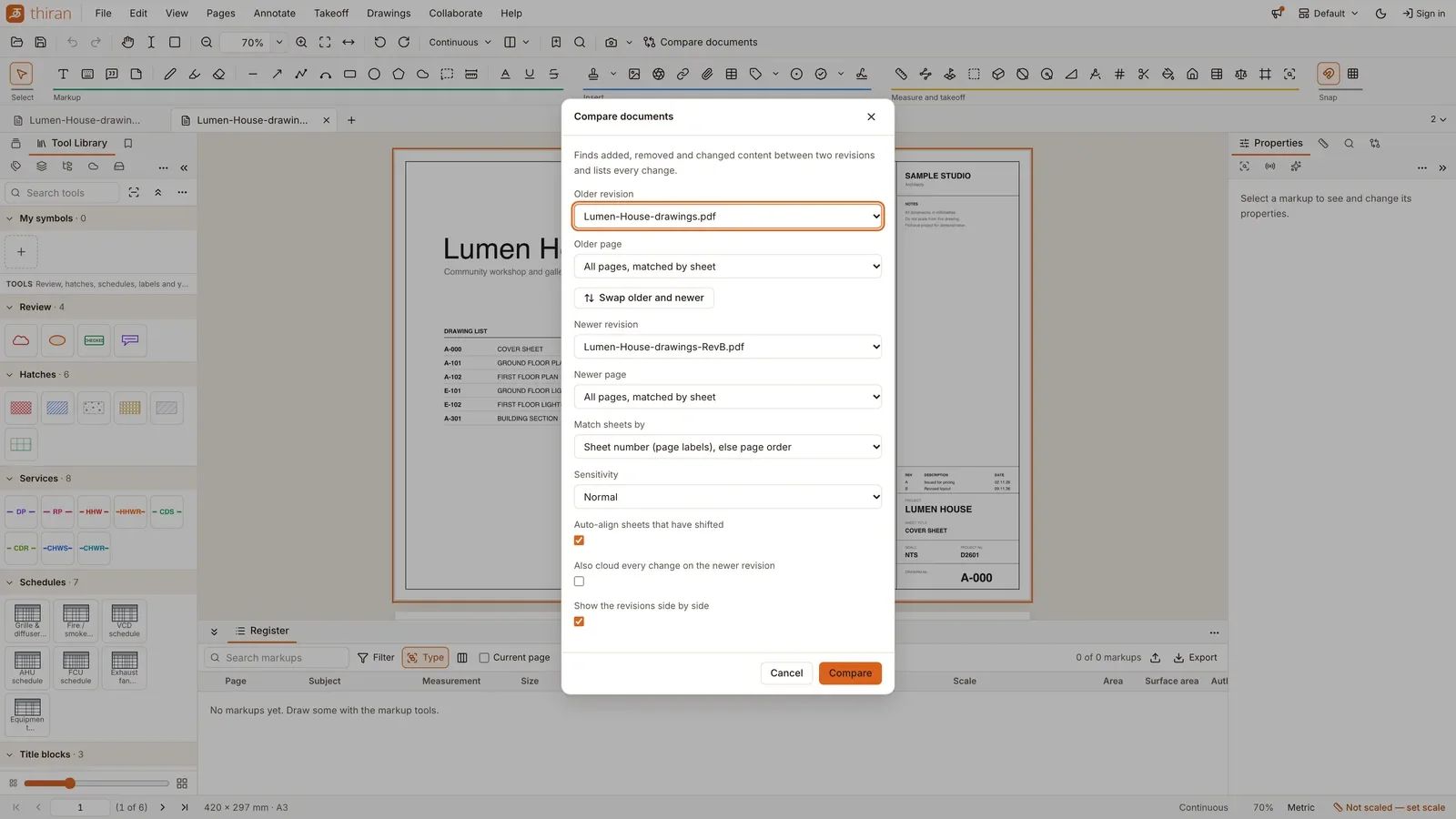
- Choose the Compare button on the toolbar.
- Pick the older and the newer revision. Sheets are matched by sheet number, or by page order if there are no sheet numbers. The swap button trades the two sides.
- To compare one page with another, pick a page on each side. They can even be two pages of the same file.
- Leave Auto-align on for sheets that have shifted, and choose the sensitivity.
The differences show straight away.
3See what changed
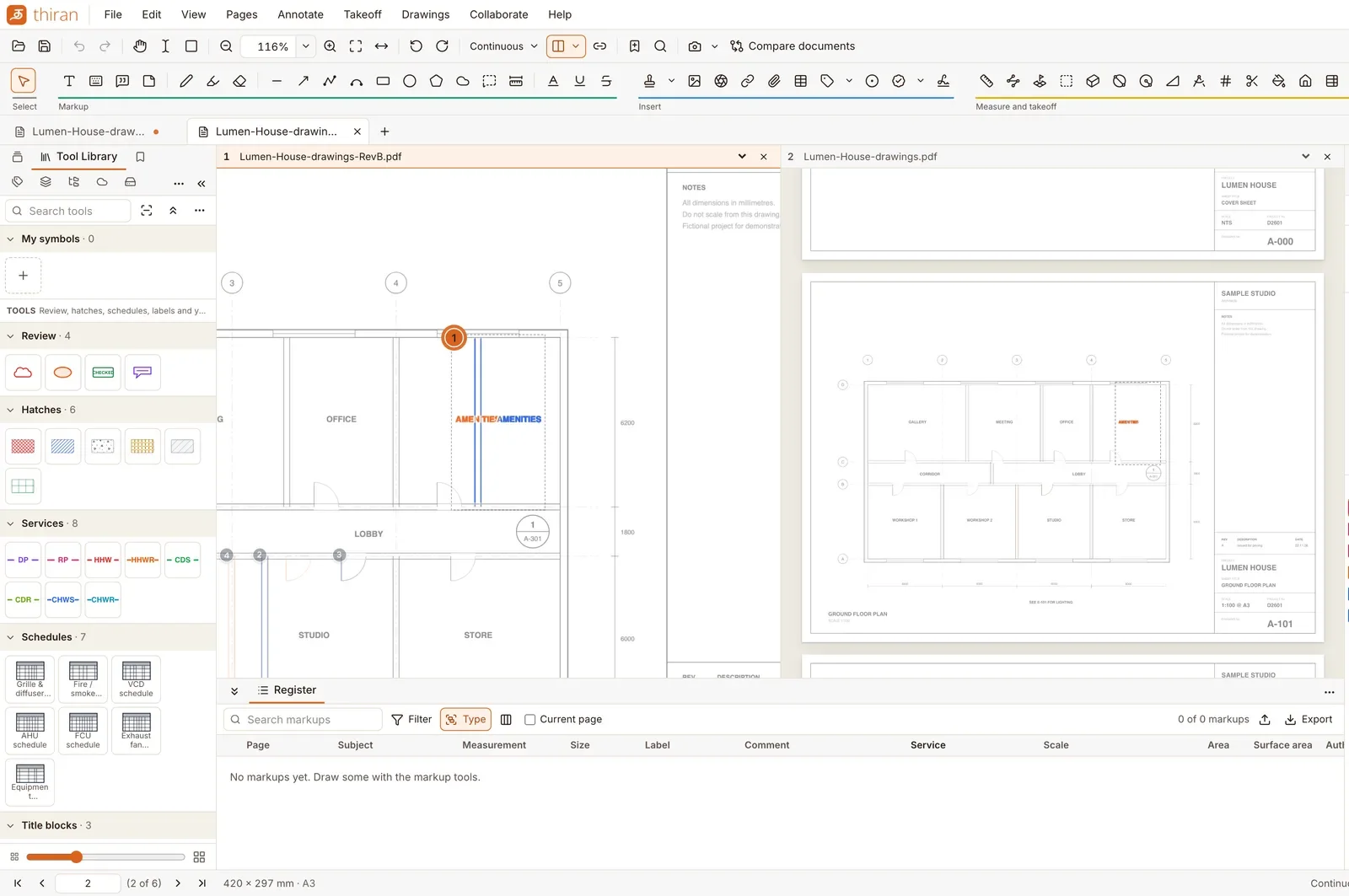
The changes are traced on the newer revision: added in blue, removed in orange, and the rest of the drawing faded so the changes stand out.
Each change has a numbered pin and a one-line description. Click a pin or its line, and both revisions zoom to the same place, side by side, so you see the before and after together.
Revision letters, dates, initials, issue status and plot stamps in the title block are set aside, so you only see changes to the drawing itself.
4Keep or dismiss each change
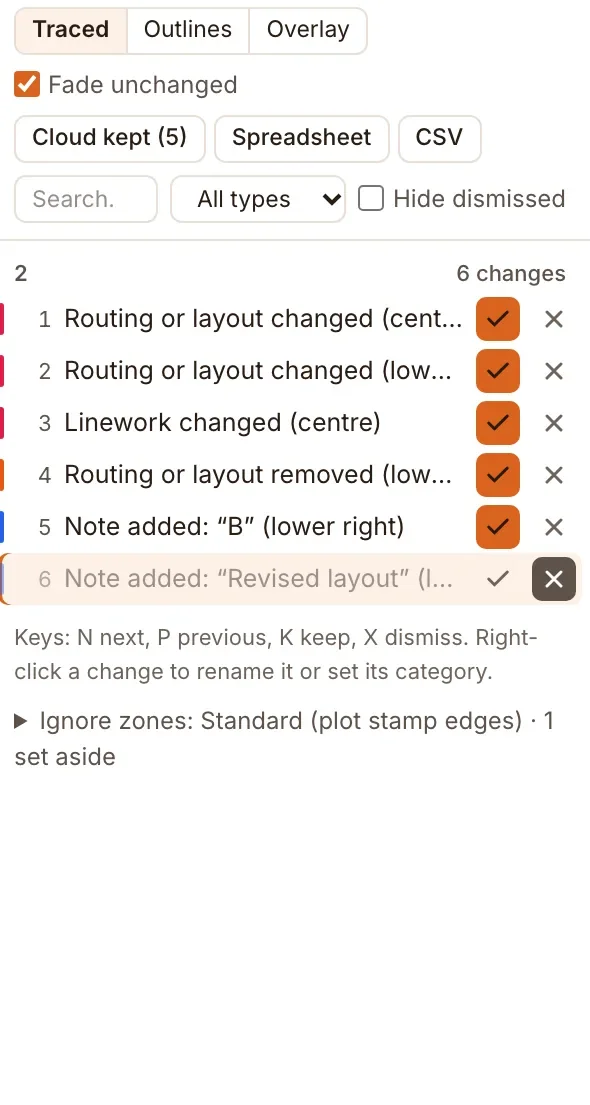
Go down the list and press ✓ to keep a change or ✗ to dismiss it. With the list selected, the keys are quick: N next, P previous, K keep, X dismiss.
Tick Hide dismissed to clear the ones you crossed out.
5Cloud the changes that matter
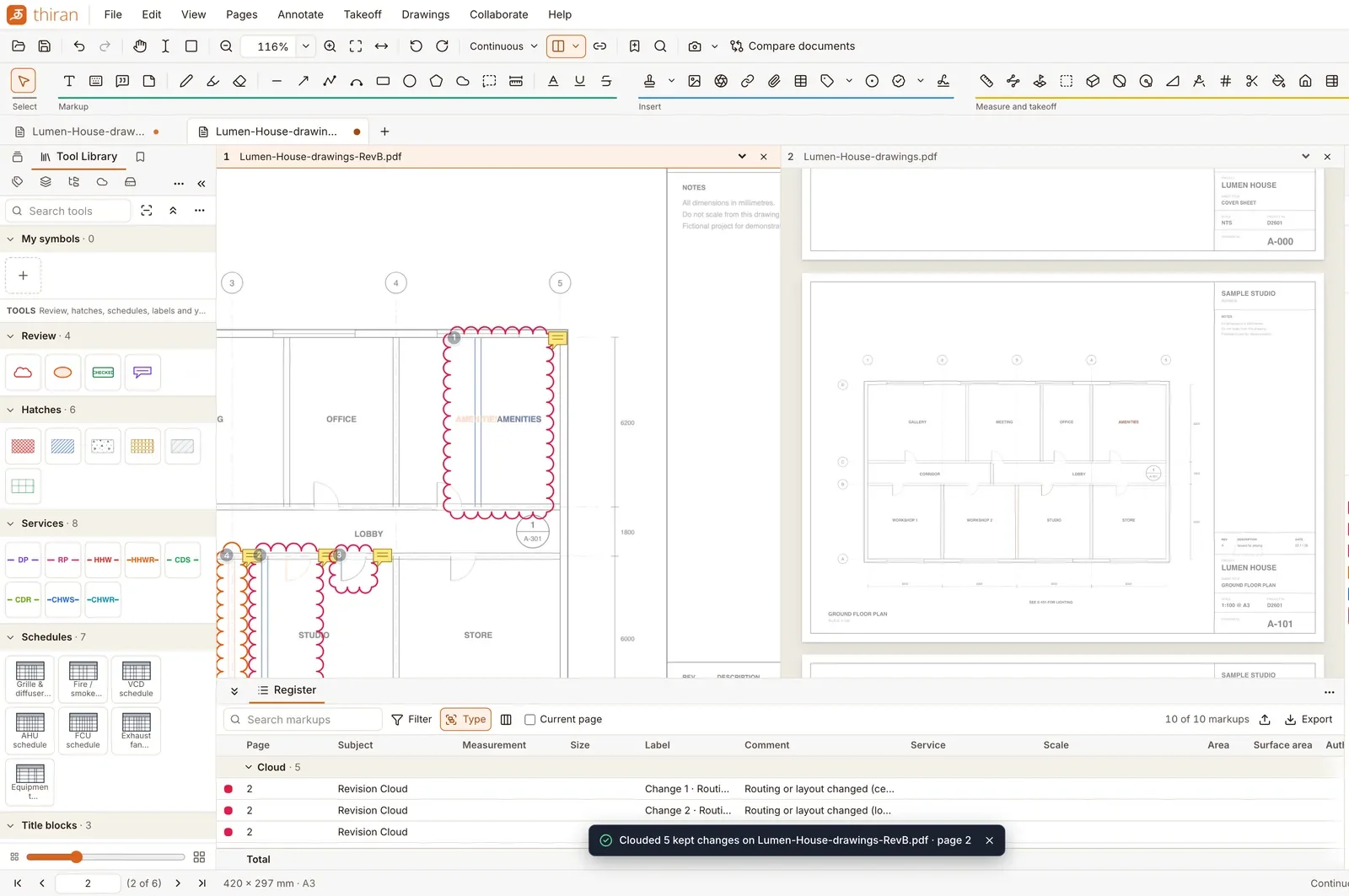
Choose Cloud kept. Every change you kept is clouded on the newer revision with a note that says what changed.
Another way: overlay two drawing revisions
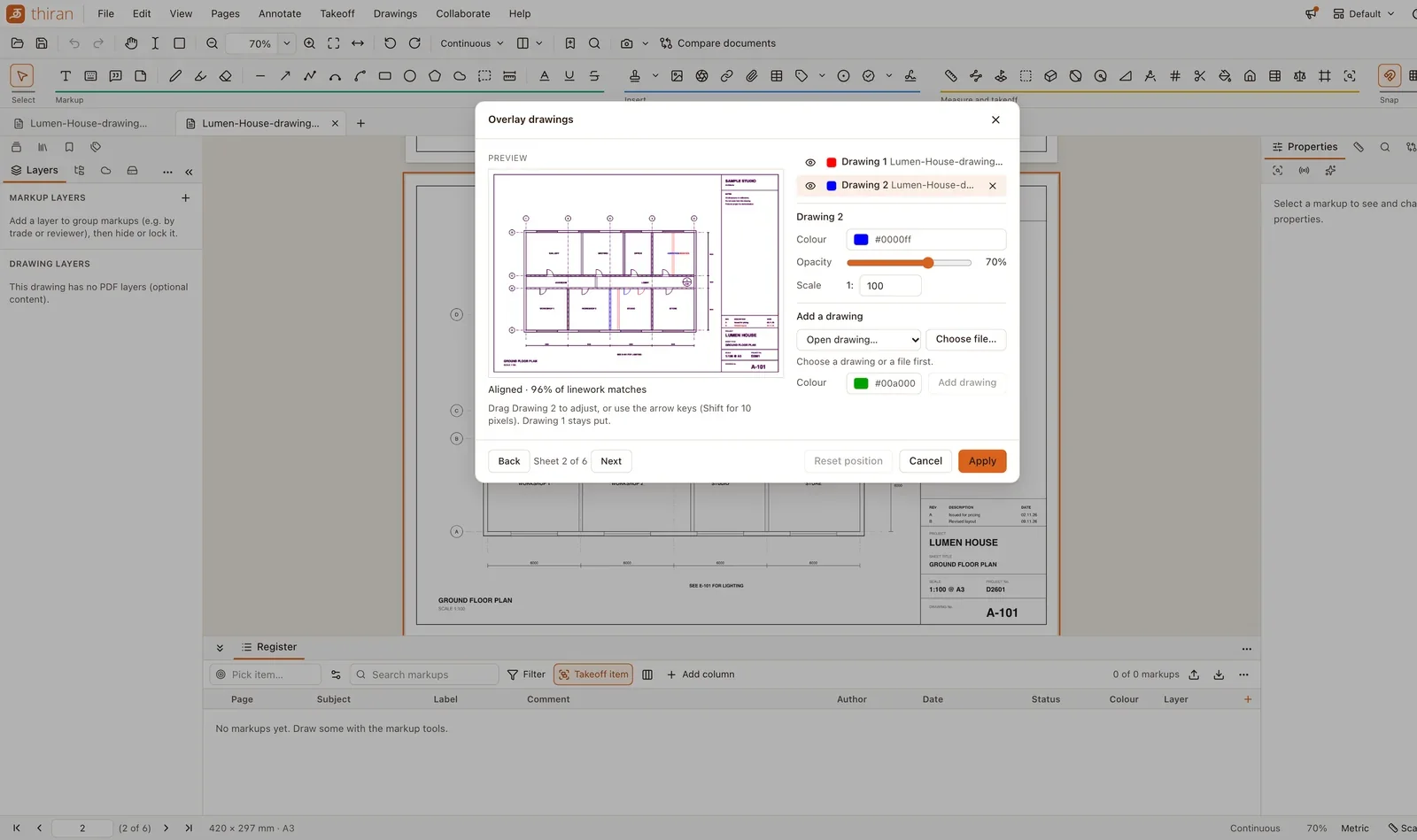
To see two drawings on top of each other, each in its own colour, use Overlay pages.
- With the newer drawing open, choose Overlay pages. A panel opens, and the open drawing is Drawing 1.
- Under Add a drawing, choose the older revision (or Choose file… for one on your computer), pick its sheet, pick a colour, then Add drawing.
- The drawings are lined up for you, on the gridlines and walls. The preview says how well they match, such as "Aligned · 85% of linework matches".
- Drag the top drawing, or use the arrow keys, to nudge it. Reset position puts it back.
- Lower the opacity of a busy drawing so the other shows through.
- Choose Apply. The overlay opens as a new document, each drawing on its own layer.
Where the two colours sit on top of each other, nothing changed. Where you see only one colour, something moved, was added or was taken away.
You can also overlay different trades to check how they fit together.
Or look at them side by side
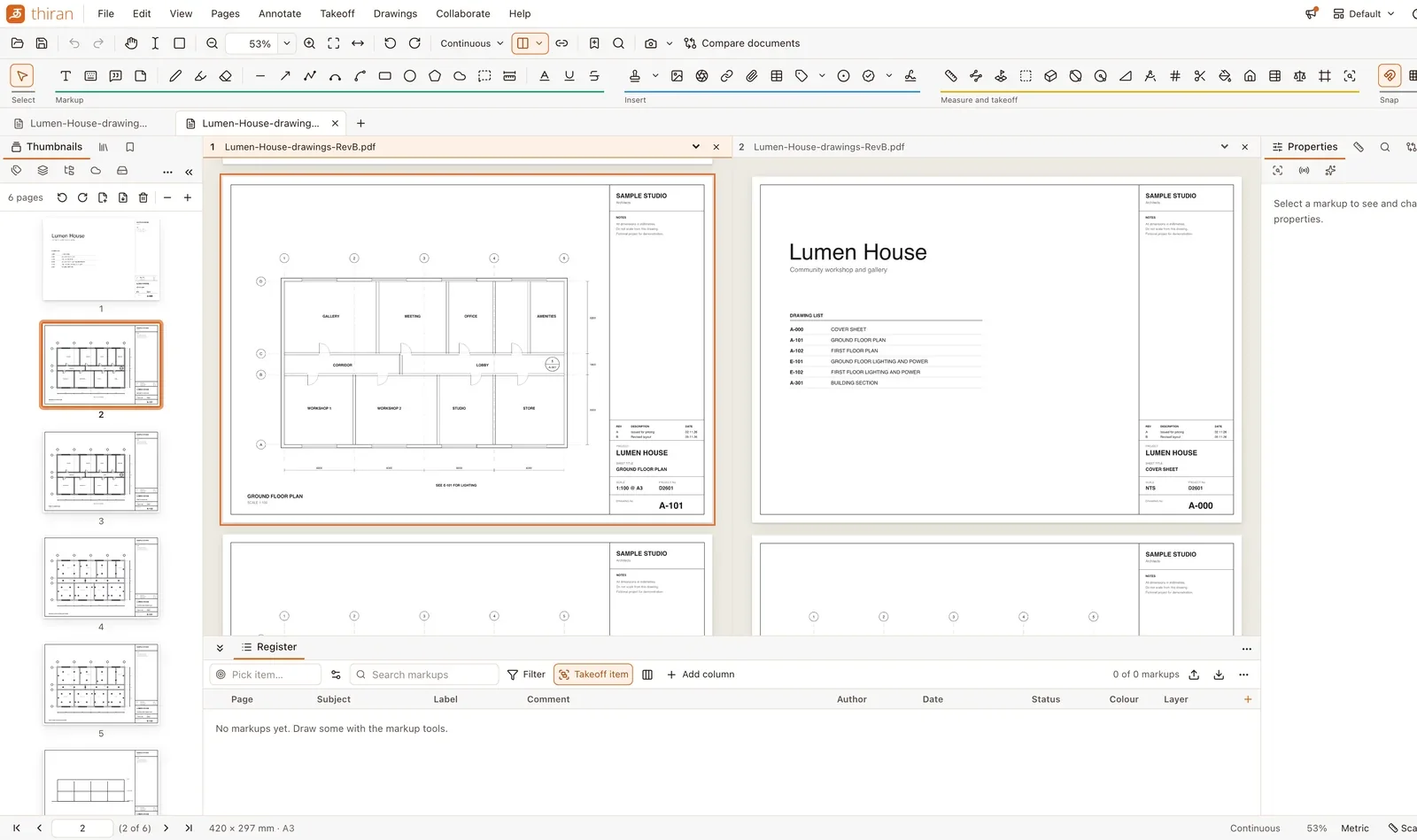
For a quick look, split the screen into two columns, open one file in each, and turn on Sync panes. Both scroll to the same place, each at its own zoom.
Tips
- Bringing in a new revision? Slip-sheet it into your drawing set and tick Cloud what changed on each replaced sheet. Your markups carry across to the new sheets.
- Review first, cloud second. Clouding every change at once is off by default, so you only cloud what you've checked.
Common questions
How do I compare two PDF files for differences?
Open both and choose Compare (steps 1 to 6). Every change is traced and listed, so you can go through them one by one. For a quick visual check, overlay them instead.
What if the drawing has moved on the new sheet?
Leave Auto-align on. It lines up sheets that have shifted before comparing them. Overlay lines the drawings up by itself, and you can drag to adjust.
Can I compare a whole set at once?
Yes. Pick both documents and the sheets are matched by sheet number.
Can I compare drawings without an internet connection?
Yes. Compare and Overlay pages run on your own computer. The Windows and Mac apps keep working without an internet connection for up to 30 days on your device licence, then need to check in once.
Can I compare PDFs on a Mac or Windows?
Yes. Compare and Overlay pages work the same in the Mac and Windows apps and on the web.
Try Thiran free for 7 days
Find every change between revisions, on Mac, Windows and the web. No card needed.