 thiran
Before you start
- You have the latest issue of every sheet, and you know which revision you're reviewing.
- You know what the review is for: design check, tender, for-construction sign-off or shop drawing approval.
In Thiran: put each reviewer on their own markup layer, such as Structure or Client comments. Anyone can then hide or lock a reviewer's comments with one click.
1The set is complete
- The sheet index matches the sheets you were sent: nothing missing, nothing extra.
- Sheet numbers and titles in the title blocks match the index.
- Revision letters and dates are filled in and agree with the transmittal.
In Thiran: the Drawing Register groups the job's PDFs into one set with a sheet index you can filter and click through, and export as a spreadsheet to check against the transmittal.
2Every sheet is to scale
- The scale in the title block is right for each plan, section and detail.
- Details at a different scale are labelled with their own scale.
- A known dimension measures correctly. Check one on every sheet, not just the first.
- Sheets printed smaller than their original size (say an A1 sheet at A3) are marked as reduced.
In Thiran: check the scale in the status bar, or calibrate from two points a known distance apart, such as two grid lines. See How to set the scale on a PDF drawing.
3Dimensions and levels add up
- Running dimensions add up to the overall dimension.
- Grid lines and their spacing match on plans, sections and elevations.
- Floor, ceiling and roof levels agree between sections and elevations.
In Thiran: measure lengths and areas to check the numbers. See How to measure areas and lengths on a PDF.
4References point to the right place
- Every section, detail and elevation marker points to a sheet that exists.
- The detail on that sheet is the one the marker shows.
- Door, window and finish tags appear in their schedules, and the schedules don't list tags that aren't on the plans.
In Thiran: in a combined set, click a sheet reference such as 3/A-102 to go to that sheet.
5The trades agree with each other
- Structure doesn't clash with openings, ducts or pipes on the architectural plans.
- Ceiling space is big enough for the services shown above it.
- Risers, shafts and penetrations line up from floor to floor.
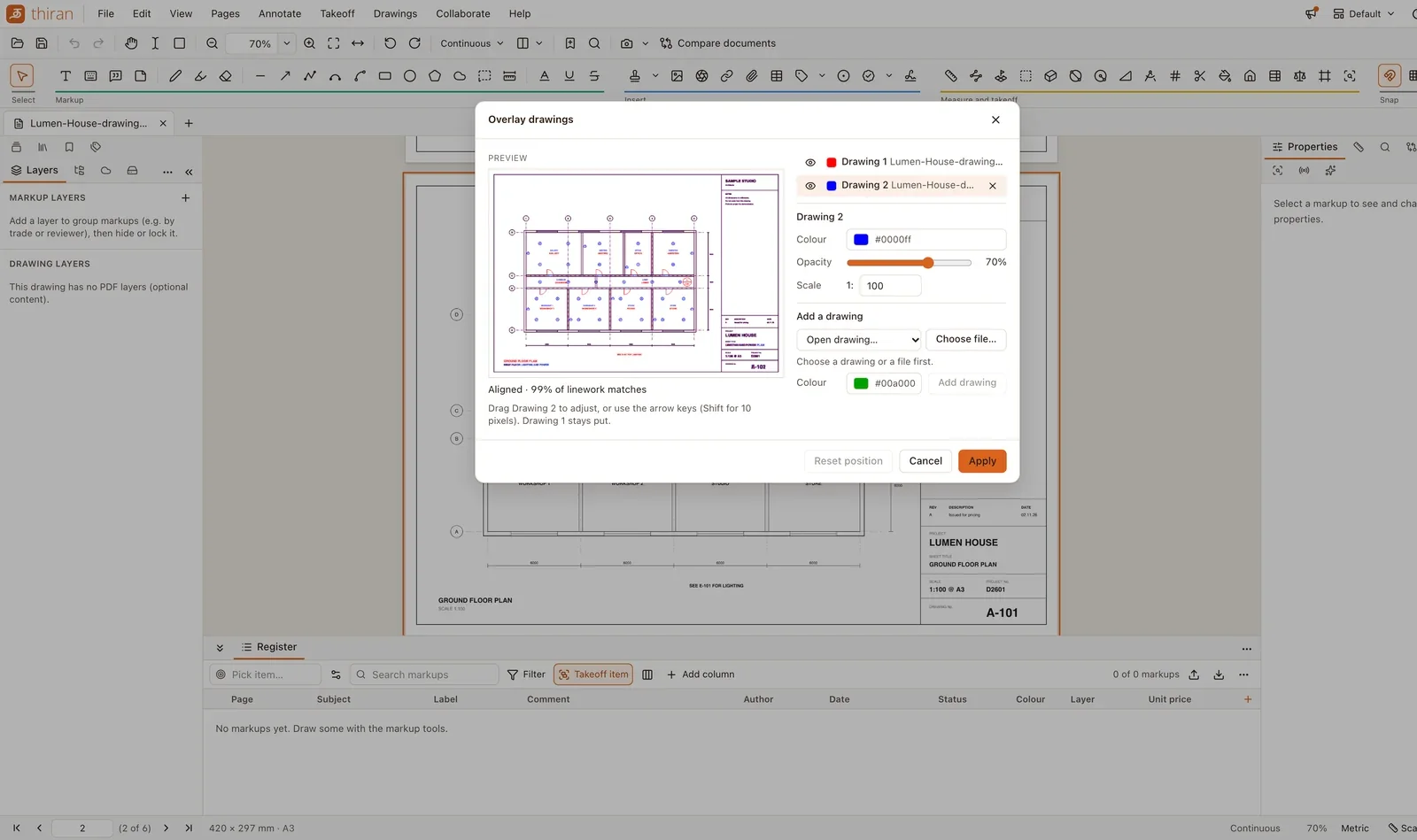
In Thiran: overlay two trades' drawings in different colours, with each drawing on its own layer, and lower the opacity of the busier one. If the PDF was plotted with CAD layers, hide the ones you don't need, such as furniture.
6What changed since the last issue
- Every change is clouded and has a revision note.
- Nothing changed that isn't clouded.
- Comments from the last review have been answered.
In Thiran: compare the two revisions to find every difference, keep or dismiss each one, and cloud the ones that matter. See How to compare two drawing revisions.
7Mark up and track each issue
- Each issue has a cloud round it and a note that says what's wrong and what's needed.
- Every issue has a status, so the next reviewer knows what's still open.
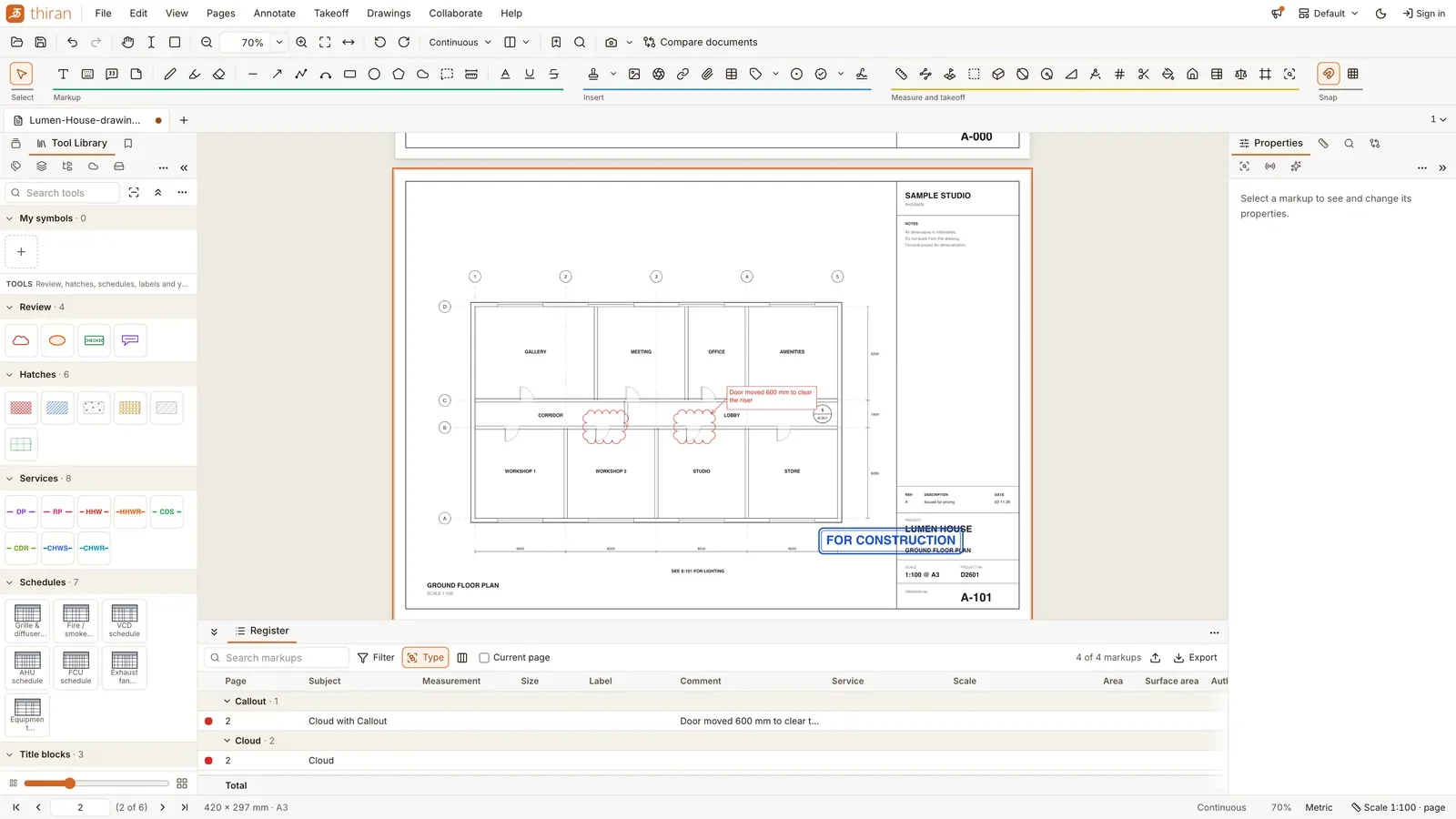
In Thiran: use Cloud with Callout so the cloud and its note move together. The Register lists every markup with its page, author, date and status; filter it to see what's still open, and click a row to go to it on the sheet.
8Sign off and issue
- The reviewer has signed off, with a status and date.
- The marked-up set goes back to the designer in a form they can open.
In Thiran: place an Approval stamp with your status, name, date and signature. Flatten a copy for issue so the markups can't be moved, and keep the marked-up original.
Common questions
What should a drawing review check first?
That the set is complete and to scale. A missing sheet or a wrong scale makes every later check unreliable.
How do several reviewers mark up one set without mixing comments?
Give each reviewer their own markup layer, and record who made each markup.
Try Thiran free for 7 days
Review drawing sets on Windows, Mac and the web.