 thiran
What you need
- The PDF drawings. One combined set or separate sheets both work.
- Thiran on Windows, Mac or the web. The 7-day trial has every tool.
1Open the drawings and set the scale
- Choose File › Open… or drag the PDFs onto the window. Each opens in its own tab.
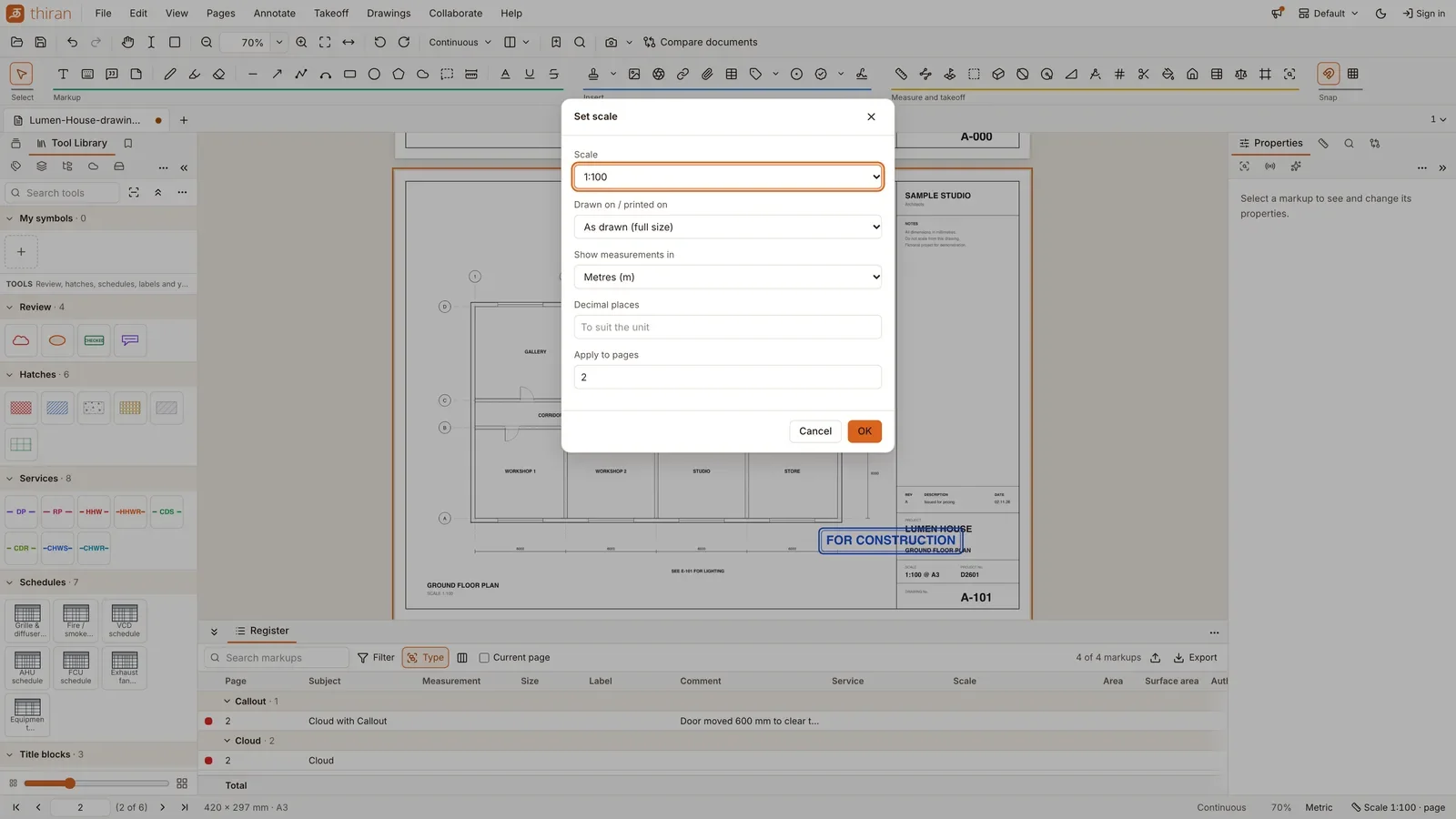
- Check the scale in the status bar. If it says Not scaled, click it and choose Set scale…, pick the scale (such as 1:100), say if an A1 sheet was printed at A3, and choose the pages it applies to.
- Or calibrate: choose Calibrate, click two points a known distance apart, such as two grid lines, and type the real distance (6000 mm or 6 m).
- Measure a length you already know before you start. If it's right, the sheet is ready.
More detail: How to set the scale on a PDF drawing.
2Measure areas and volumes
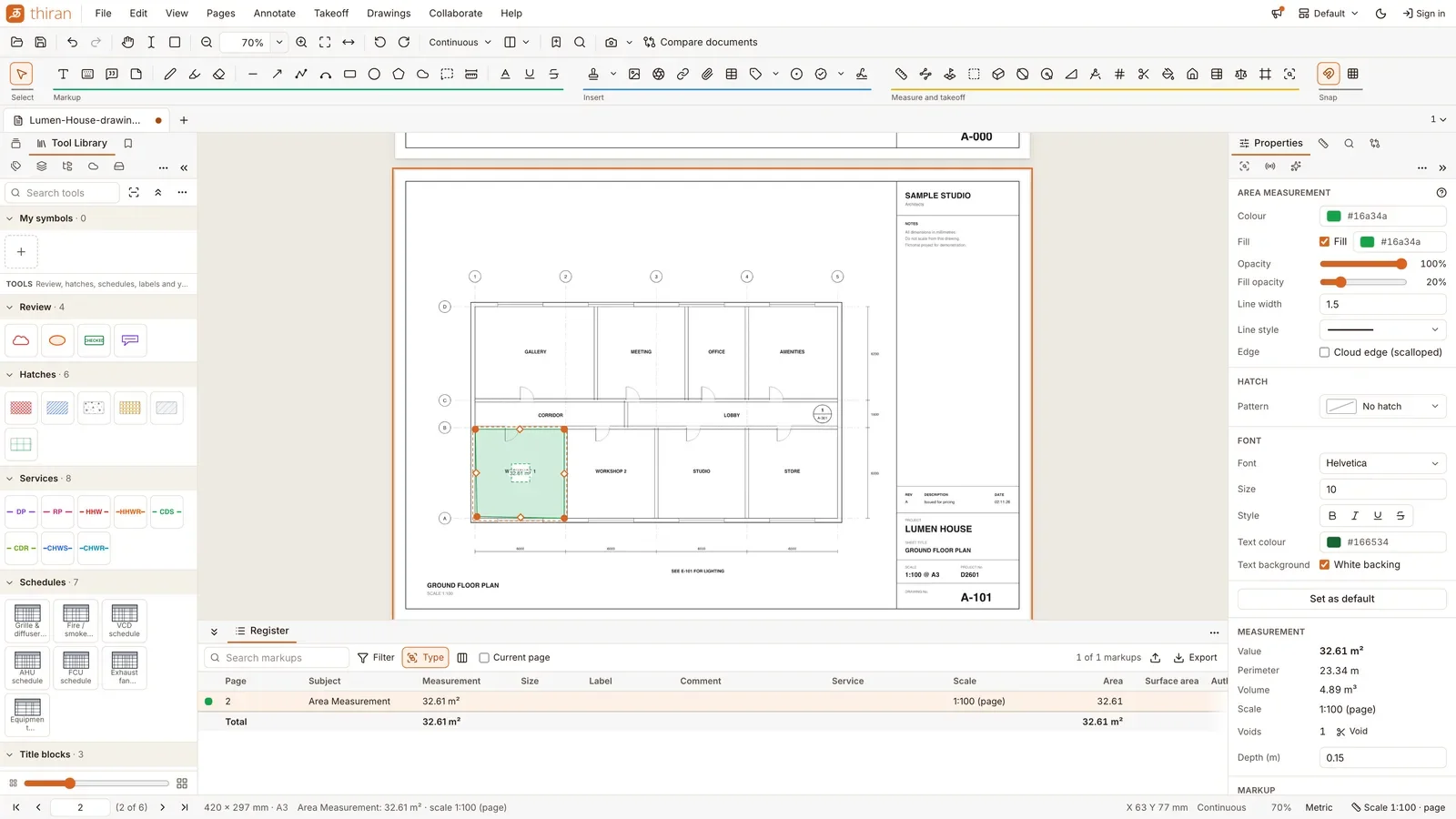
- Choose Area. Choose Polygon or Rectangle in the status bar.
- Click each corner, then double-click, press Enter or click the first point to close it.
- To take out a hole, such as a stair void or a column, press Void and draw it inside the area.
- For a slab or screed, give the area a depth under Properties › Measurement › Depth. You get its volume in m³ as well.
Area stays on, so you can measure room after room. Press Esc to stop. For rooms with closed walls, Fill Area is quicker: click inside the room and its outline is traced and measured.
3Measure lengths
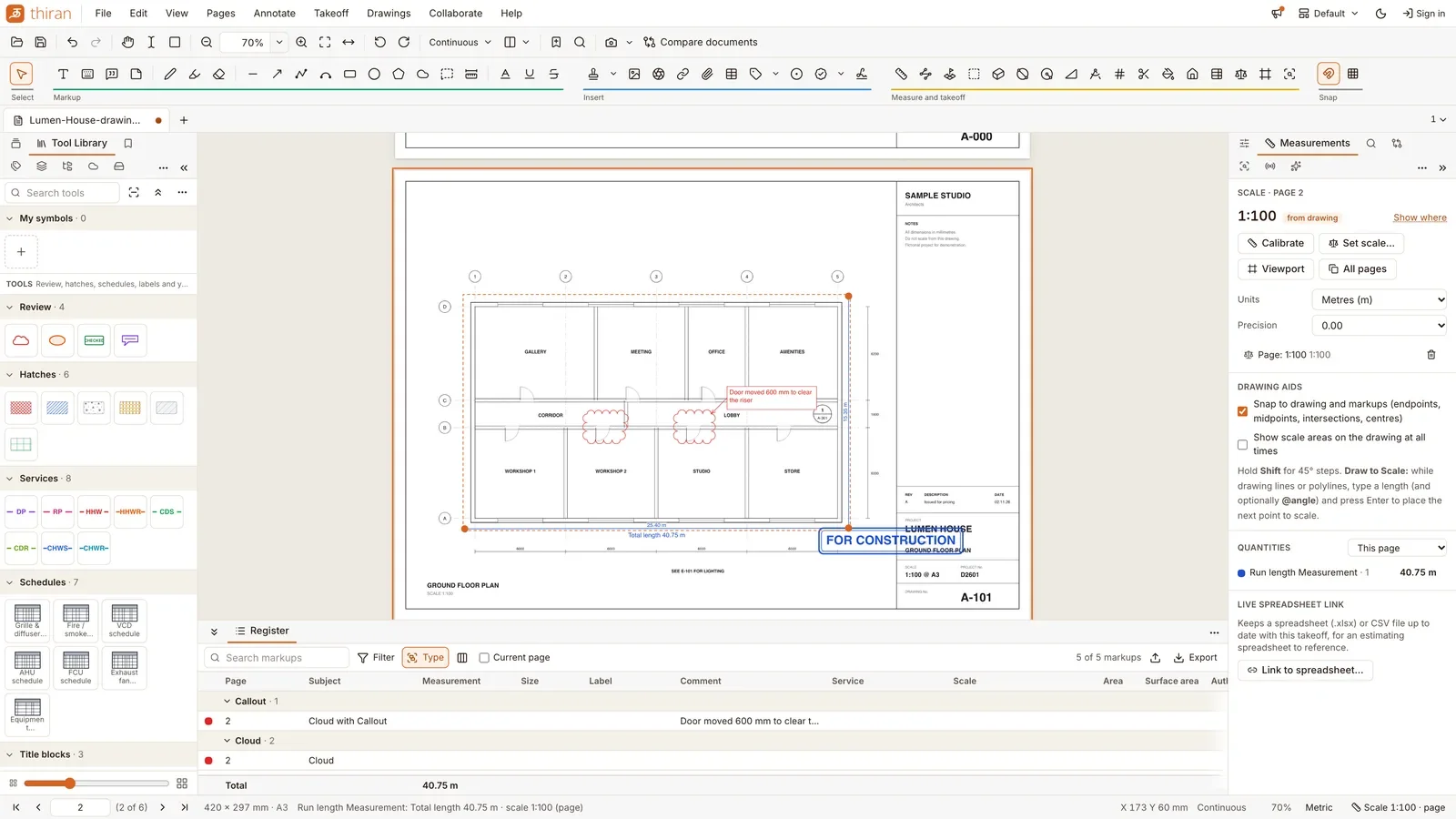
- Length measures a straight distance: drag, or click two points.
- Run length measures a run with several parts, such as a wall, pipe or cable route. Click each point and double-click to finish. Each part and the total are listed.
- Perimeter measures round a closed outline, such as a room for skirting. Add a height as the depth to get the wall surface area too.
More detail: How to measure areas and lengths on a PDF.
4Count items
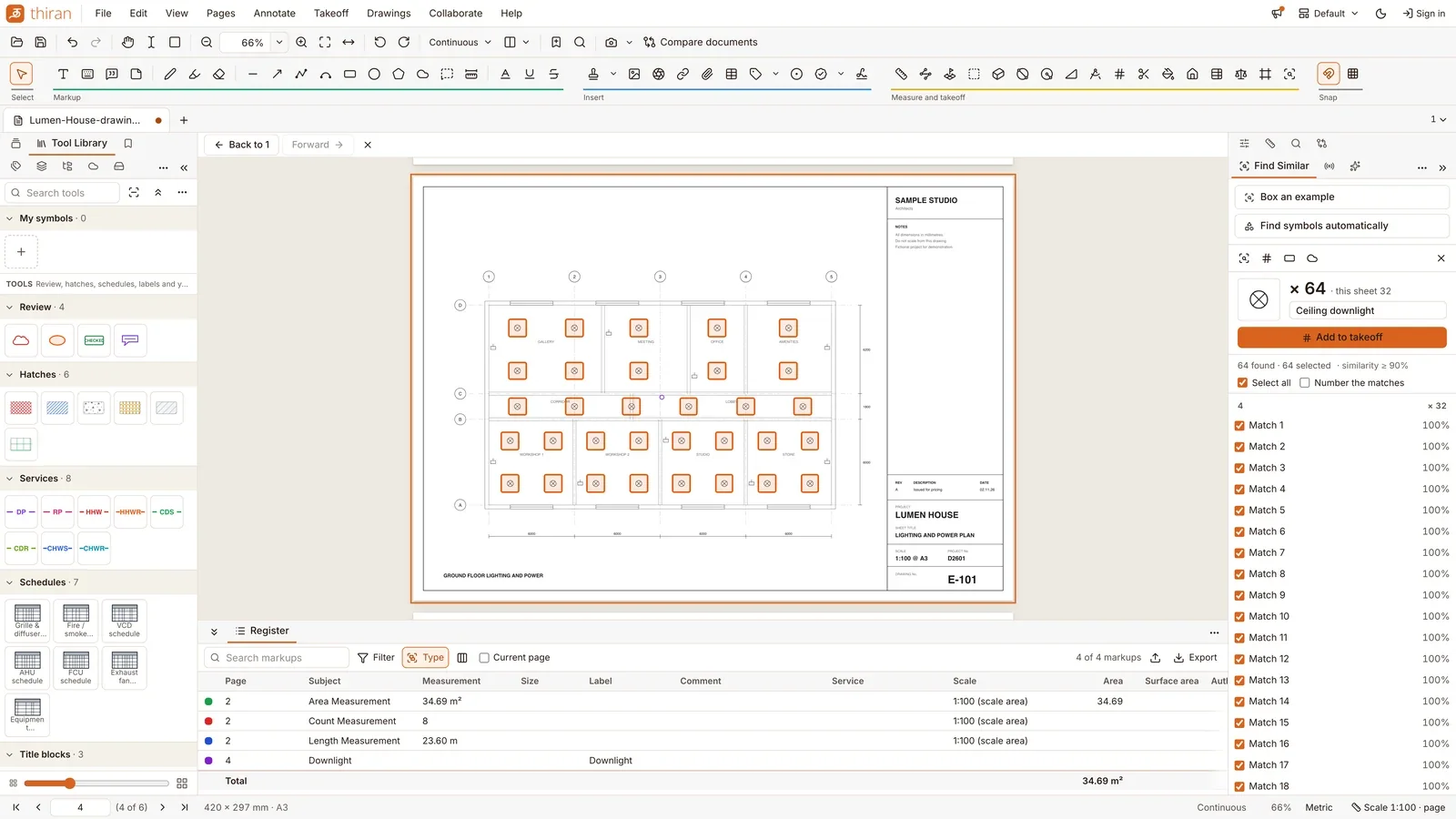
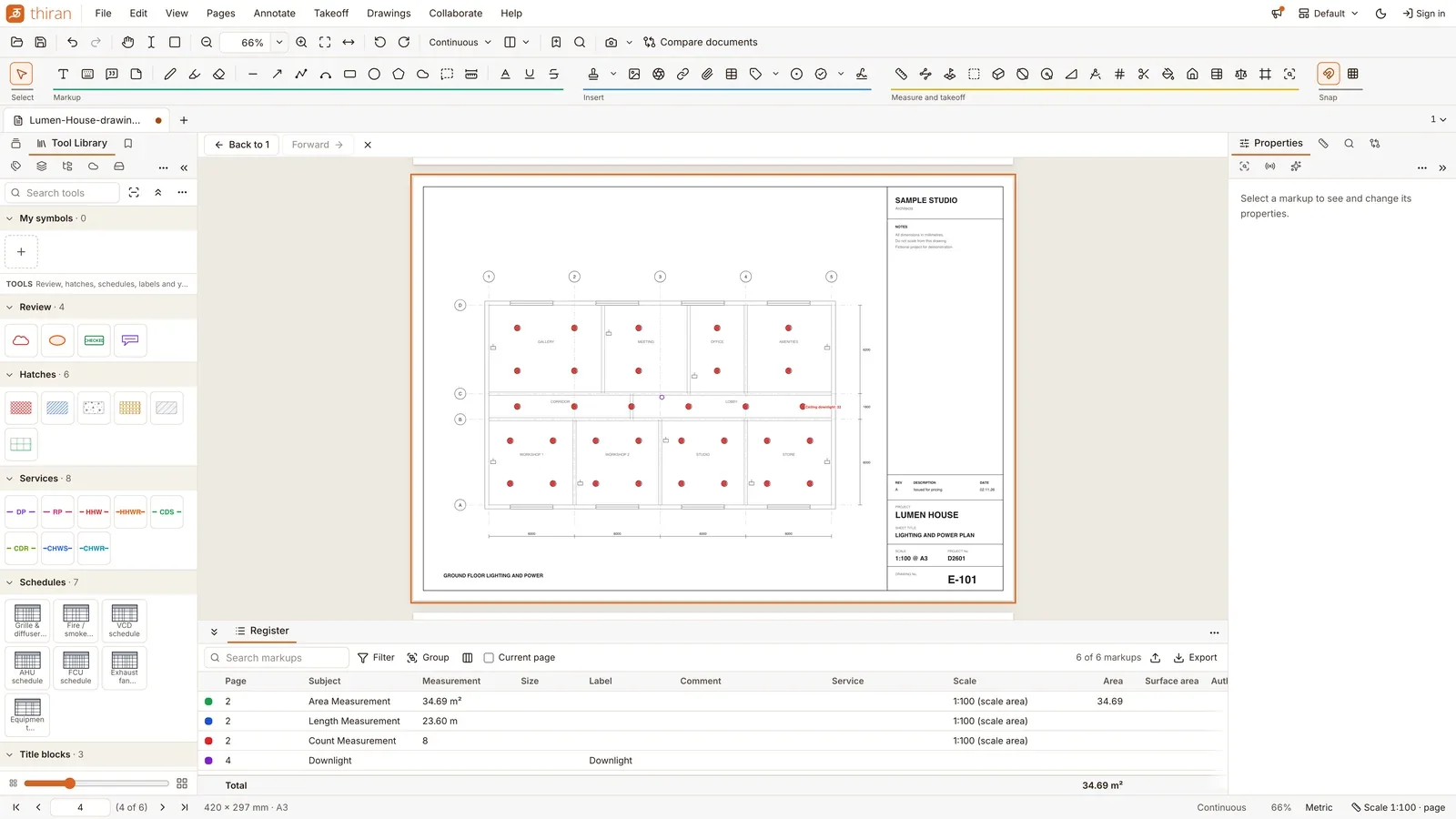
- Count: click each item and each click adds a numbered dot. The running total shows beside the last dot.
- Find Similar: for lots of one symbol, box one copy and every copy on the sheet, the document or all open documents is outlined. Untick any that are wrong, then Add to takeoff.
More detail: How to count symbols and export quantities to Excel.
5Name everything as you price it
A takeoff only helps if the totals group the way you price. Give each measurement a clear subject, such as "Floor tiles – wet areas" or "Wall type A". Totals are then grouped by that name.
At the top of the Register, Pick item… gets the right tool ready for a named item, so the next thing you measure lands under that name.
6Check the totals
- Measurements › Quantities totals every length, area, volume and count by subject, for this page or the whole document.
- The Register, docked at the bottom, lists every measurement. Use Group by, Filter and Totals to check it. Click a row to jump to that measurement on the sheet.
7Add your rates and formulas
The Register works like a spreadsheet:
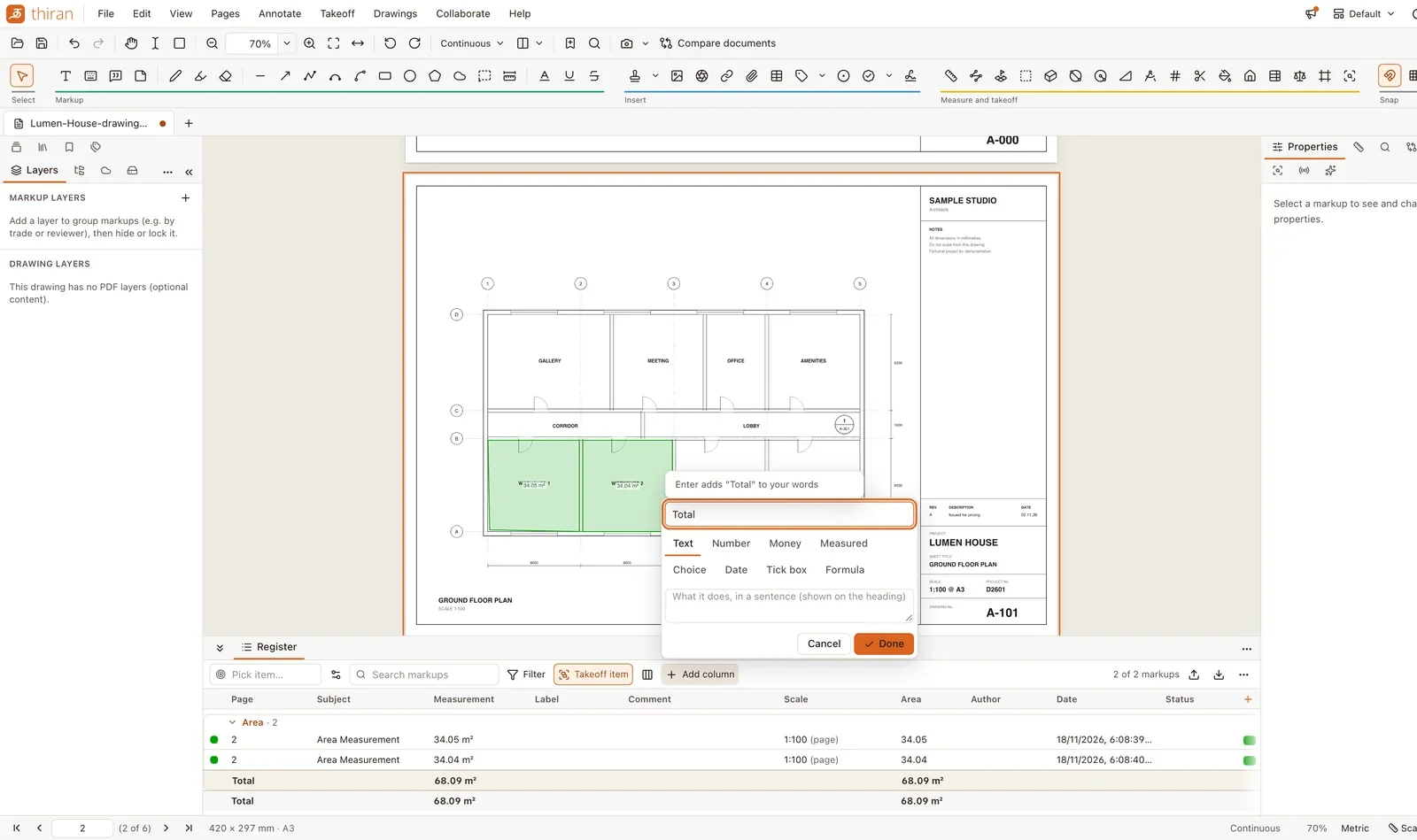
- Add your own columns with the + at the end of the headings: text, number, money, measured, choice, date, tick box or formula.
- Formulas start with =, for example = Quantity * Unit price. SUM, AVERAGE, ROUND, IF, MIN, MAX and CONVERT are there as you type.
- Unit prices (under ⋯) are typed by you, once per heading, and fill every row with that heading.
- Profiles saves your columns, prices, currency and units for the next project.
8Export to Excel
- In the Register, set the columns, filters and grouping you want.
- Choose Export › Spreadsheet (.xlsx)… or CSV… for the rows shown.
- Or choose Export › Takeoff with formulas: the columns shown, with working formulas, subtotals and grand totals.
- For a printable report, choose Export › PDF summary with thumbnails…
To keep an estimating spreadsheet in step as you work, use Live spreadsheet link in the Measurements panel. Thiran keeps that .xlsx or CSV file up to date with the takeoff.
Common questions
What should a construction takeoff include?
Every quantity you'll price: areas (floors, ceilings, walls), lengths (walls, pipes, skirting), volumes (slabs, excavation) and counts (doors, fittings, lights), each under a name that matches your estimate.
Can I take off a whole drawing set?
Yes. Set the scale for each page, then switch Quantities to Whole document.
Does it work in metric?
Yes. Measure in mm, m, m² and m³, or in feet and inches.
Try Thiran free for 7 days
Measure, count and export your takeoff on Windows, Mac and the web.