 thiran
What you need
- The PDF with the sideways or upside-down pages.
- Thiran on Windows, Mac or the web.
First: rotate the page, or just your view?
Thiran can turn a drawing in two ways, and only one is saved:
| Rotate pages | Rotate view | |
|---|---|---|
| What turns | The pages in the file | Only what you see on screen |
| Saved in the PDF | Yes | No |
| Others see it | Yes | No |
| Use it for | Scans or sheets that are the wrong way round | A drawing plotted sideways that you just want to read |
If the page is wrong in the file, rotate the pages. If the page is fine but easier to read turned round, rotate the view.
1Open the drawing
Drag the PDF onto Thiran, or choose File › Open. If it's in Google Drive or OneDrive, open it with File › Open from… and you can save it straight back.
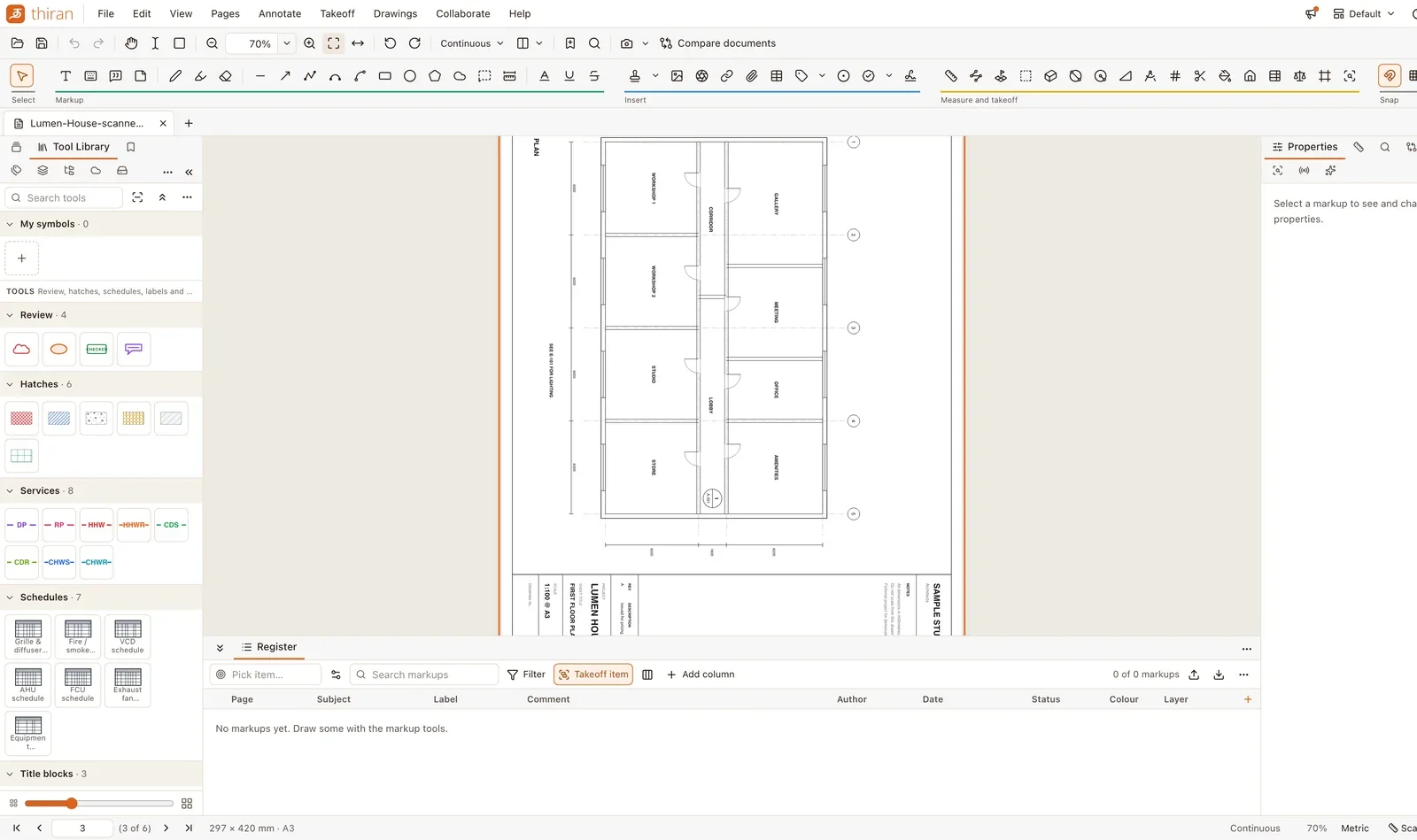
2Select the pages to turn
- Open the Thumbnails panel.
- Click the page to turn. For several, Shift-click a run of pages, or Ctrl-click (⌘-click on a Mac) to pick them one by one.
Or just go to the page, if it's only the one you're on.
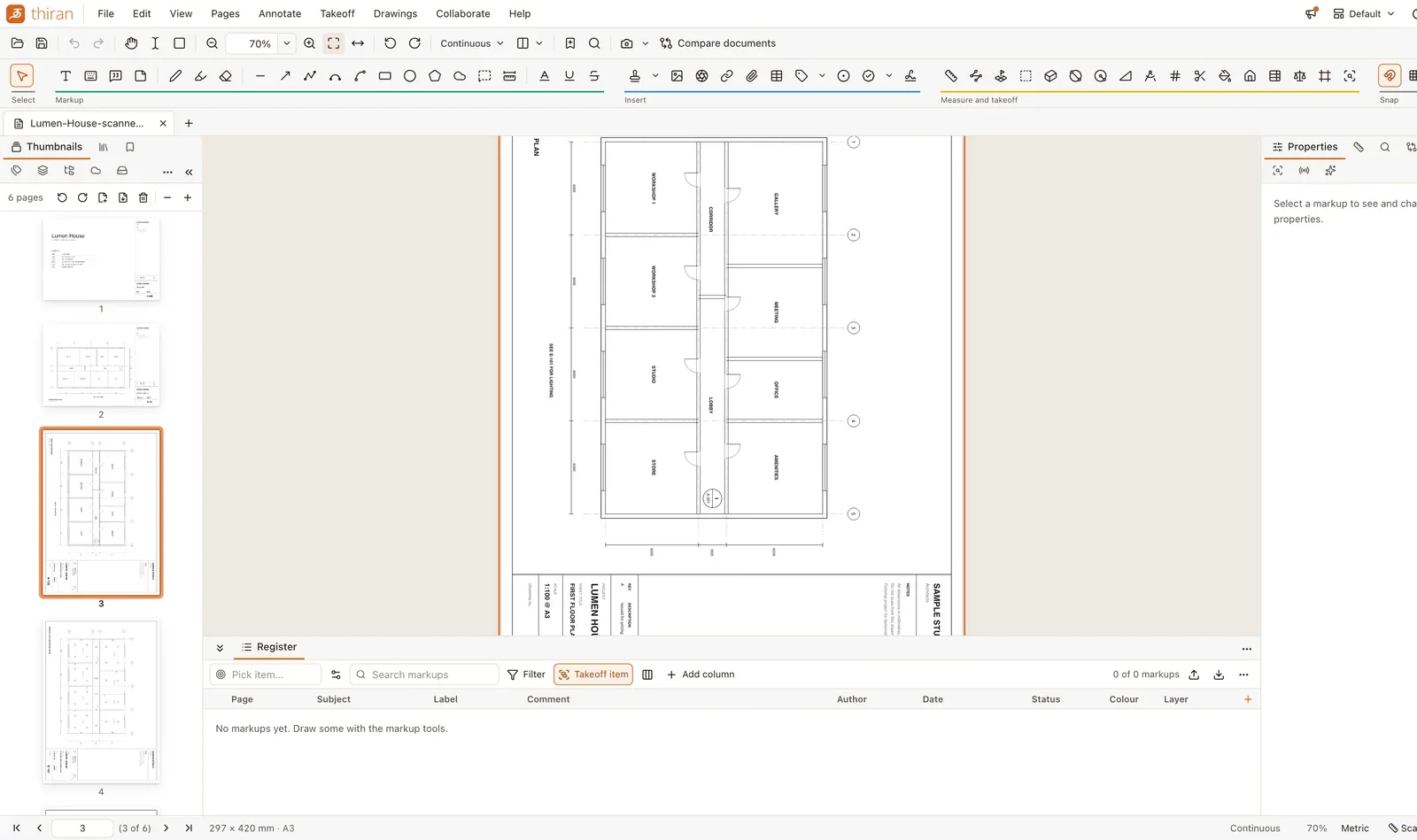
3Rotate them
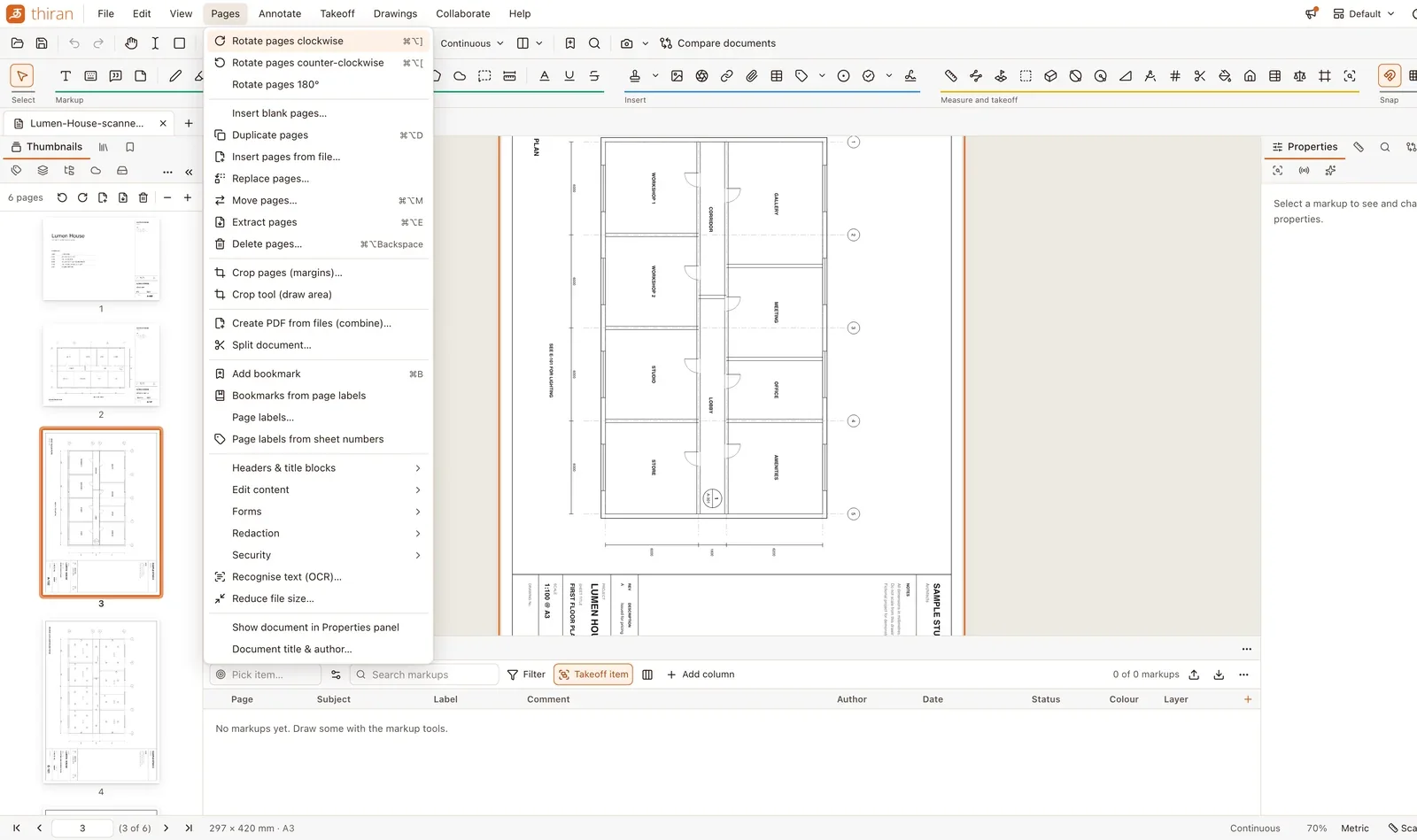
Choose one of these from the Pages menu, or use the rotate buttons at the top of the Thumbnails panel:
- Rotate pages clockwise: a quarter turn to the right.
- Rotate pages counter-clockwise: a quarter turn to the left.
- Rotate pages 180°: turns an upside-down page the right way up.
Any markups already on the page turn with it, so your clouds and notes stay where they belong.
Changed your mind? Every page operation can be undone with Undo.
4Save the rotation
Choose File › Save to save the rotation into the PDF, or File › Save As… to keep the original and save a new copy.
If you opened the file from Google Drive or OneDrive, File › Save saves it back over the same file there.
5Print it
Once the pages are the right way round, choose File › Print…. Your markups print with the drawing.
Just want to turn the view?
To read a drawing that was plotted sideways, without changing the file:
- Choose Rotate view clockwise from the View menu (Shift+Alt+R), or the rotate buttons on the toolbar.
- Choose Rotate view counter-clockwise to turn it the other way.
New markups are drawn upright for the way you're looking at the sheet. The view rotation isn't saved, so the file is unchanged.
Other page jobs
While the Thumbnails panel is open, you can also:
- Drag pages up or down to put them in order.
- Right-click to insert a blank page, insert pages from another file, duplicate, extract or delete pages.
- Use Replace with pages from file… to swap in a reissued sheet.
Common questions
Why does my PDF go back to sideways when I reopen it?
You probably turned the view, not the page. Rotate view isn't saved. Use Rotate pages, then save.
Can I rotate just one page in a drawing set?
Yes. Select only that page in Thumbnails and rotate it. The other pages stay as they are.
Will my markups end up in the wrong place?
No. Markups turn with the page.
Can I rotate pages in a PDF from Google Drive?
Yes. Open it with File › Open from… › Google Drive, rotate the pages, and save it back.
Try Thiran free for 7 days
Rotate, reorder and mark up drawing sets on Windows, Mac and the web.