 thiran
What you need
- A Google account with the PDF in its Drive.
- Thiran on Windows, Mac or the web.
1Open the PDF from Google Drive
- Choose File › Open from… and pick Google Drive.
- Choose the Google account to use. The first time, sign in to it. In the desktop app, this happens in your web browser.
- Browse to the PDF and open it.
The drawing opens in its own tab, with a cloud mark on the tab so you know it came from a drive.
2Pick the right account
If you have more than one Google account, say a work one and a personal one, Thiran asks which to use each time you open a drive. The account you used last is already picked:
- Press Enter to keep it.
- Pick another account from the list.
- Choose Use another account to sign in with a different email address.
Each email address has its own drive, so pick the one the file is in.
3Mark it up
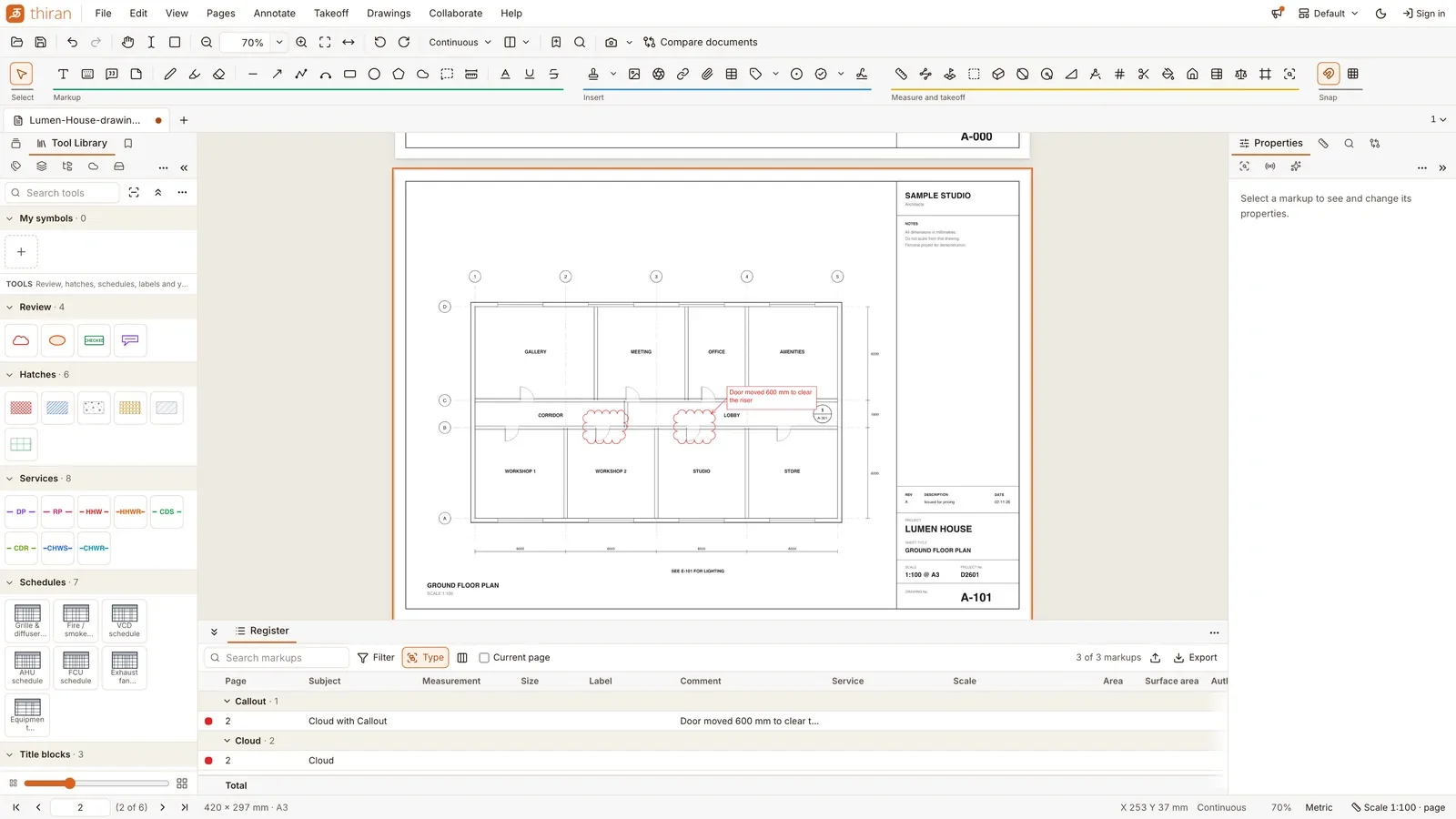
Everything works the same as on a file from your computer: clouds, notes, text, stamps, measurements and counts. For the tools themselves, see How to annotate and redline a PDF drawing.
4Save it back to Google Drive
Choose File › Save (Ctrl+S, or ⌘S on a Mac). The PDF is saved back over the same file in Google Drive, with your markups inside it.
Because the markups are saved as standard PDF markups, anyone who opens the file from Drive sees them, whatever PDF reader they use.
If someone else saved it first: if a colleague saved the file in Drive after you opened it, nothing is overwritten. You're offered Save as copy instead, so neither of you loses work.
5Or save a copy to a Drive folder
To keep the original untouched, or to put a file from your computer into Drive:
- Choose File › Save to….
- Pick Google Drive and the folder.
The document is saved there as a new file.
6Reopen it later
Open the File menu and point to Open recent. Files from Google Drive show the drive after their name and reopen from Drive, as the account they came from. You may be asked to sign in again.
Only the file's name and where it came from are remembered. No copy of a Drive file is kept in the browser.
Keep your drives in one panel
If you open lots of files from the same places, the Connected storage panel keeps Google Drive, OneDrive and a folder on your computer side by side. For Google Drive, choose Open… to pick a PDF, or Save to… to put the document you're viewing there.
OneDrive works the same way
Choose File › Open from… and pick OneDrive, then sign in to your Microsoft account. Opening, saving back, saving a copy and switching accounts all work as above. The OneDrive browser shows the account in use, and Switch account changes it.
Stop using an account on this computer
In the drive's account list, choose Sign out next to the account. You stay signed in to Thiran.
Common questions
Can I edit a PDF in Google Drive without downloading it?
Yes. Open it with File › Open from… › Google Drive, mark it up and save. It's saved back to Drive, with no download and re-upload.
Will my team see my markups?
Yes. They're saved inside the PDF in Drive, so anyone with access sees them in their PDF reader.
What if Google Drive says "Set up by your administrator"?
Your organisation hasn't switched that drive on yet. Ask your IT team.
Does it work on the web as well as the desktop app?
Yes, on Windows, Mac and the web. In the desktop app, you sign in to Google in your web browser the first time.
Try Thiran free for 7 days
Open drawings from Google Drive or OneDrive, mark them up and save them back, on Windows, Mac and the web.